Understanding GitHub Flow Through Examples
GitHub Flow is a branching strategy built around GitHub, and it describes how you create and merge branches.
Let's understand branching strategies through some simple GitHub Flow use cases.
# Understanding branching strategies
A branching strategy is a version control approach for collaborating and managing code efficiently.
Let's take a quick look at two widely used ones, Git Flow and GitHub Flow.
# Git Flow
Git Flow is a branching model proposed by Vincent Driessen in 2010.
Git Flow offers a more complex and structured approach, and its core idea is to manage versions systematically and strictly.
This makes it a good fit for large projects or enterprise environments, but managing it becomes quite complex as the number of branches grows, so it is not a good fit for small projects or fast development.
It uses the following main branches.
main(master): The core branch that always stays in a deployable product statedev(develop): The branch that integrates development work for the next releaserelease/*: Branches that manage release versionsfeature/*: Branches for developing featuresbugfix/*: Branches for fixing bugshotfix/*: Branches for urgent bug fixes
# GitHub Flow
GitHub Flow is a branching model proposed by GitHub, designed for simple and fast development.
GitHub Flow is simple and easy to understand, so it is widely used for fast development and deployment.
However, it has no explicit release management, so it is not a good fit for large projects or enterprise environments that need strict management.
GitHub Flow has the following main characteristics.
- Uses a single core branch (
mainormaster) - All other development happens on branches created from the core branch and is merged quickly
- Code is reviewed through pull requests before merging
- Efficient collaboration with various GitHub features
- Fast product feedback through continuous deployment
# Initializing the project
Initialize an NPM project, then set its type to module.
1npm init -y
12345678910111213{ "name": "github-flow-test", "version": "1.0.0", "description": "", "main": "main.js", "type": "module", "scripts": { "test": "echo \"Error: no test specified\" && exit 1" }, "keywords": [], "author": "", "license": "ISC" }
Create a main.js file and leave it empty.
The project structure now looks like this.
12├─main.js └─package.json
# Starting version control
Start version control with Git.
12# Start version control git init
Create the first version on the main branch.
You can see the branch name in the lower left corner of VS Code.
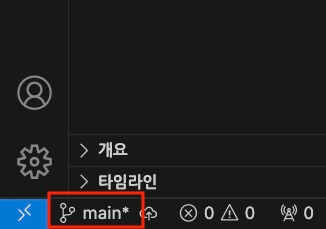
12345# Stage the changes git add . # Commit the changes git commit -m "Create the project."
# If the branch is not main
Starting with Git 2.28, the default branch name changed from master to main.
If your current branch name is master, rename the branch as follows.
1git branch -m main
If you want to use main as the default branch in all your projects, update Git to version 2.28 or later, or run the following command.
1git config --global init.defaultBranch main
# Connecting a GitHub repository
Create a GitHub repository to connect to your local project.
First, log in to GitHub, click the + button in the upper right corner of the screen, and select [New repository].
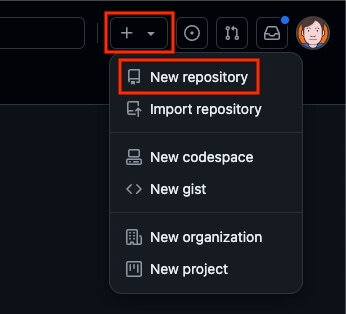
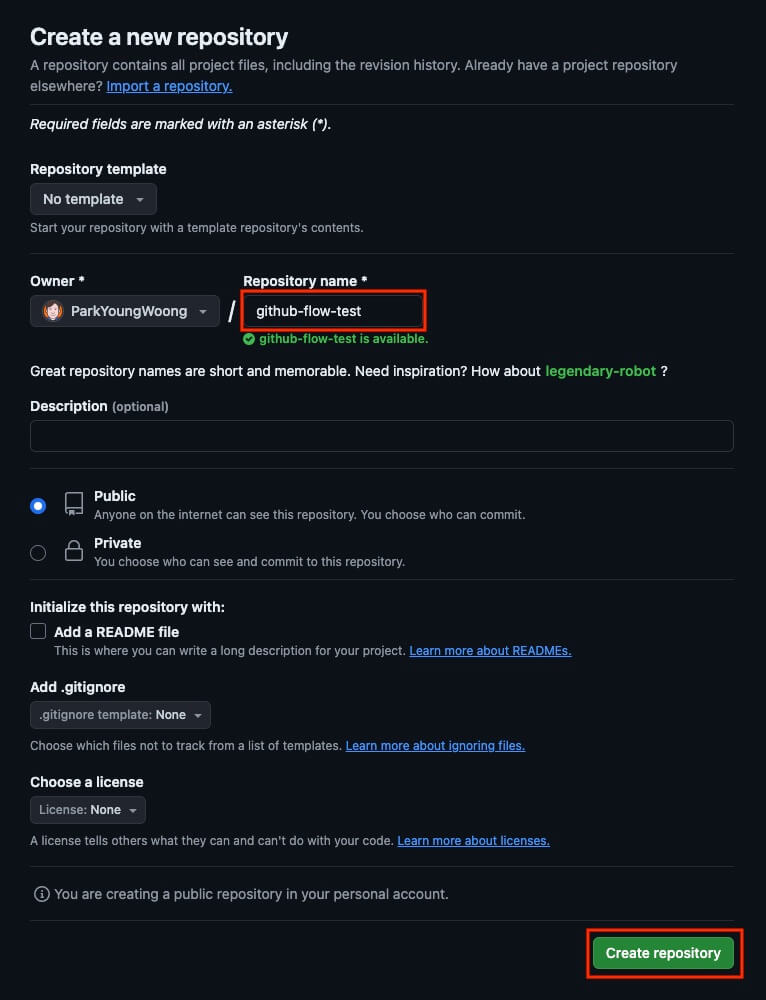
Enter a repository name in the [Repository name] field and select the [Create repository] button.
As shown in the following image, copy the URL (HTTPS, SSH) shown in the middle of the new repository's page.
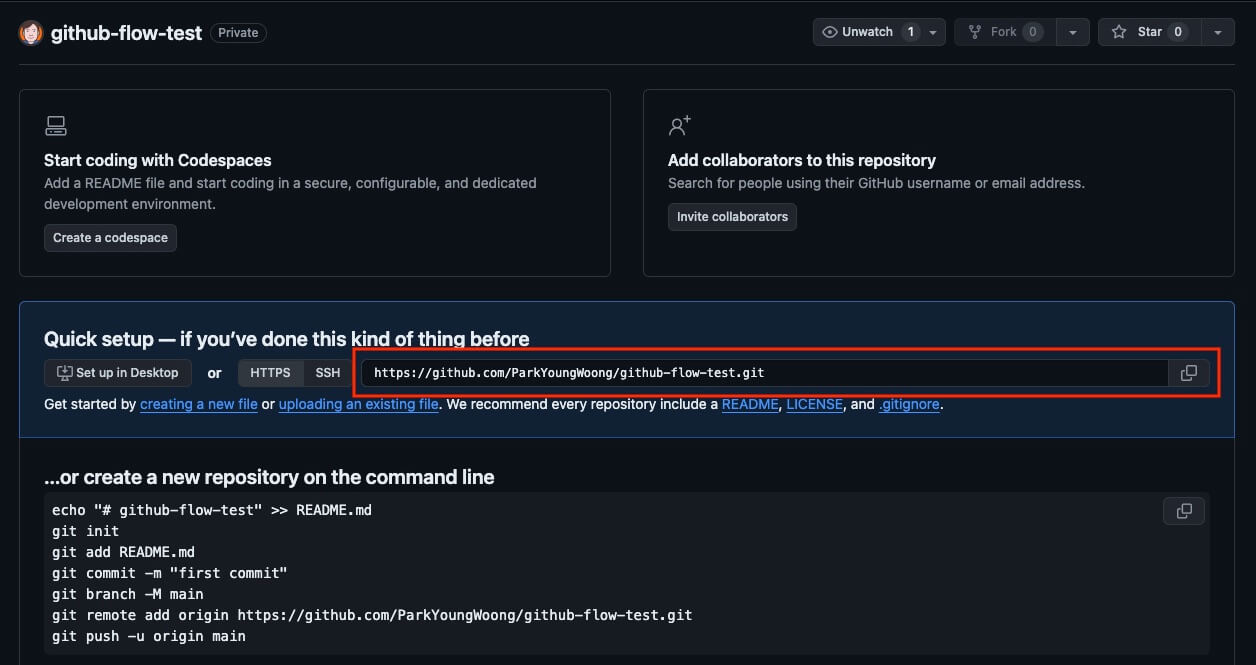
Back in the project, connect (add) the remote GitHub repository you created under the alias origin.
The project initialization is now complete.
12# git remote add <remote-alias> <URL> git remote add origin https://github.com/ParkYoungWoong/github-flow-test.git
# Solo development example
Developer Park starts from the initialized project and wants to develop a feature that uses count data as a module.
Here is how it can go.
Create a new branch based on the main branch.
12345# Move to the main branch git switch main # Create and move to the feature-x branch git switch -c feature/count
Then, as shown below, develop the new feature in count.js and use it in main.js.
The feature is done!
1export const count = 0
123import { count } from './count.js' console.log(count) // 0
Now that development is done, create (commit) a new version.
From here, the process splits into two cases: one that does not follow GitHub Flow and one that does.
12345# Stage the changes git add . # Commit the changes git commit -m "Modularize the count data."
# Without GitHub Flow
Feeling lazy, Park doesn't follow GitHub Flow and wants to merge the finished branch into the main branch as simply as possible.
Move to the main branch and merge the finished branch (feature/count).
Then upload (push) it straight to the remote repository.
12345678# Move to the main branch git switch main # Merge into the main branch git merge feature/count # Push the main branch to the remote repository git push origin main
# With GitHub Flow
Park follows GitHub Flow to merge the finished branch into the main branch.
First, push the finished branch to the remote repository.
12# Push to the remote repository git push origin feature/count
# Creating a PR
Once the push is complete, go to the [Pull Requests] page of the GitHub repository.
Then select the [New pull request] button to start creating a new pull request (PR).
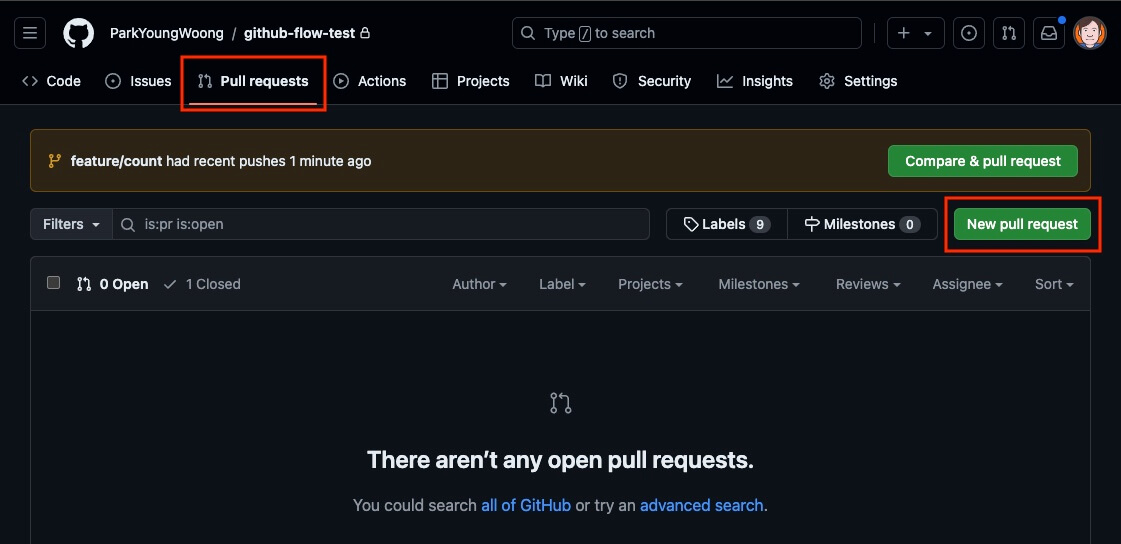
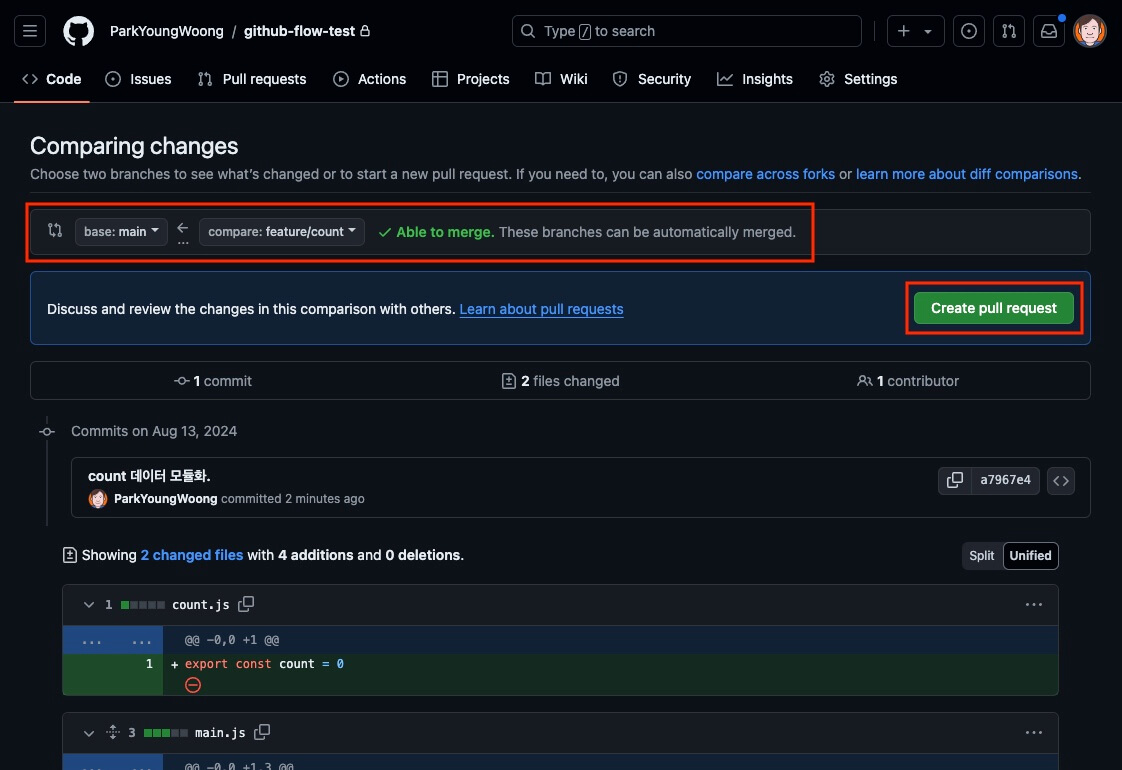
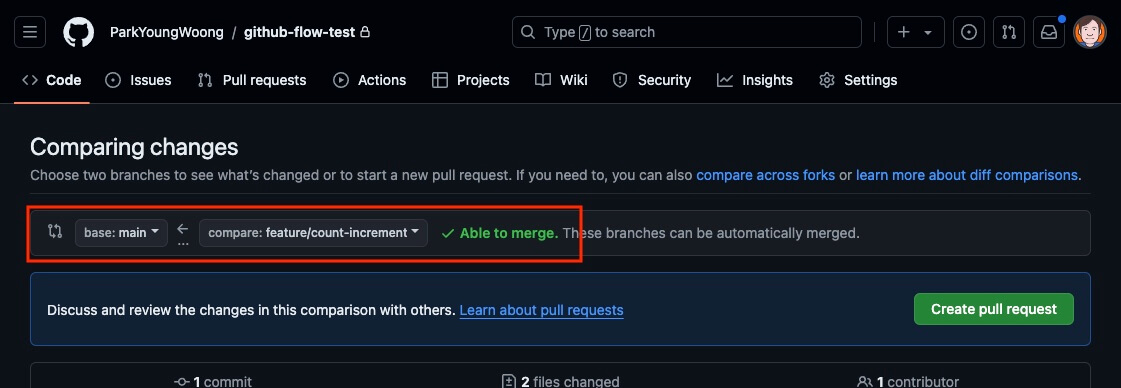
First, as shown in the following image, set the base branch to main and the compare branch to feature/count.
This means you will merge the source branch (compare) into the target branch (base), and the direction of the arrow in the middle makes it easier to understand.
You can also check the [Able to merge] indicator to see whether the branches can be merged so that you can create the PR.
If they can't be merged, the [Create pull request] button is not enabled.
When you're ready, select the [Create pull request] button.
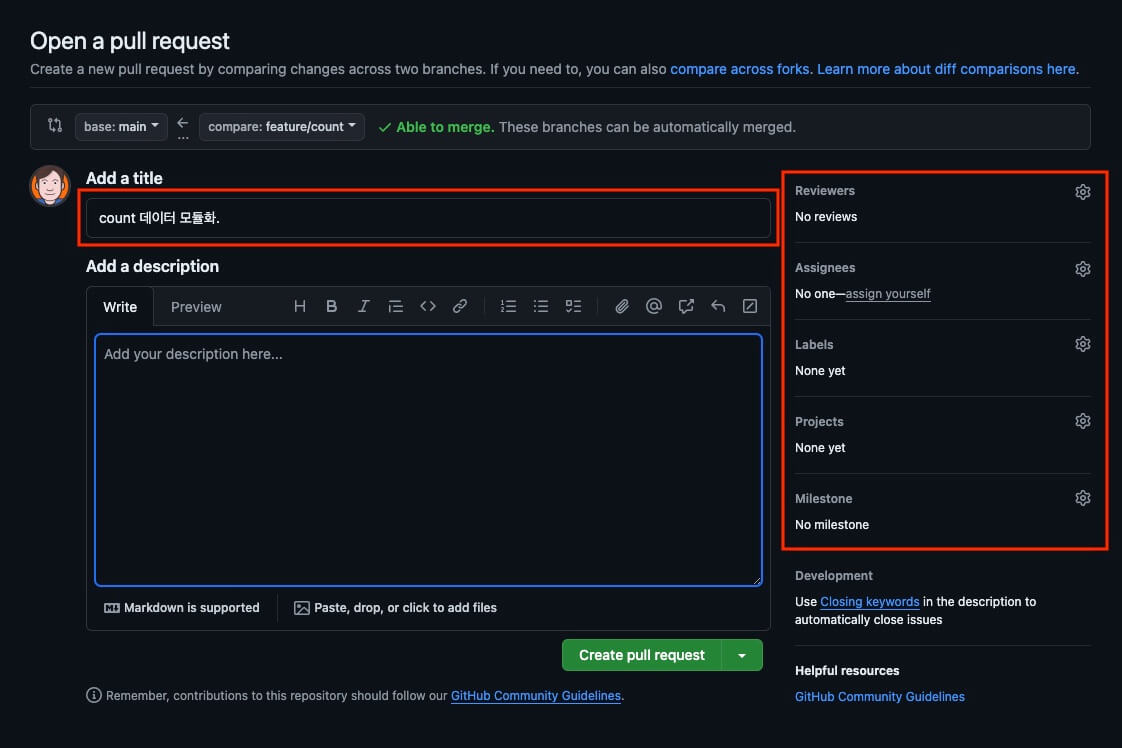
Now add a title and a description for the PR.
Since you're developing alone for now, it's fine to add a short description or skip it.
You can also simply select [assign yourself] to make yourself the PR assignee (Assignees).
Finally, select the [Create pull request] button to create the PR.
# Merging the PR
Now check the PR you created.
Since you're developing alone, there probably isn't anything in particular to review.
Select the [Merge pull request] button right away to merge the PR.
Unless you have a specific reason, use the default merge option.
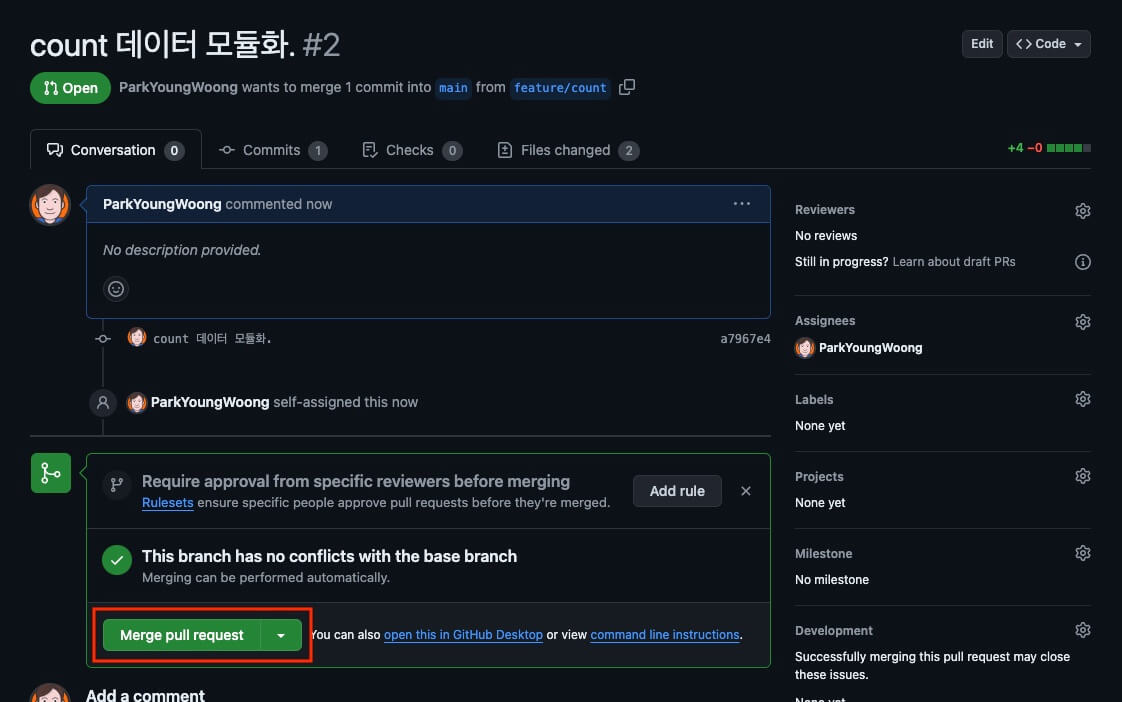
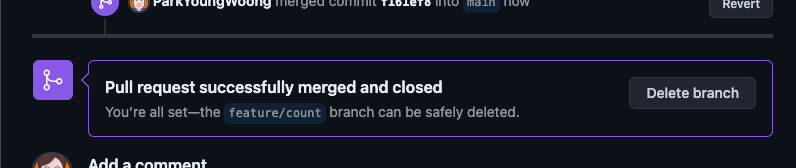
When the merge is complete, the PR status changes to 'Merged'.
# Merge options
Select the arrow to the right of the [Merge pull request] button to see three merge options.
By default, the [Create a merge commit] option is selected.
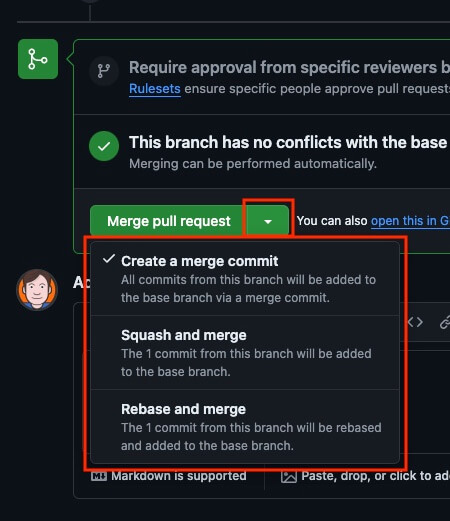
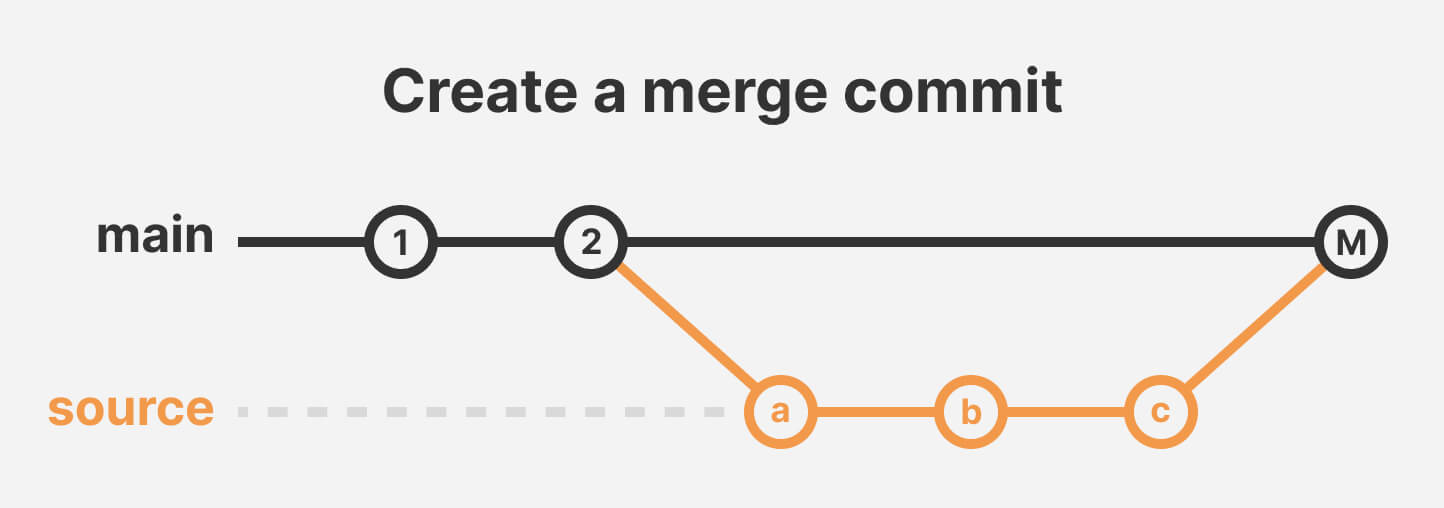
[Create a merge commit] is the default option, which merges all commits of the source branch into the target branch.
For example, if the source branch has three commits (a, b, c), a single new commit (M) that merges them is added to the target branch and linked to them.
This leaves a clear merge history, which is useful when you look back later.
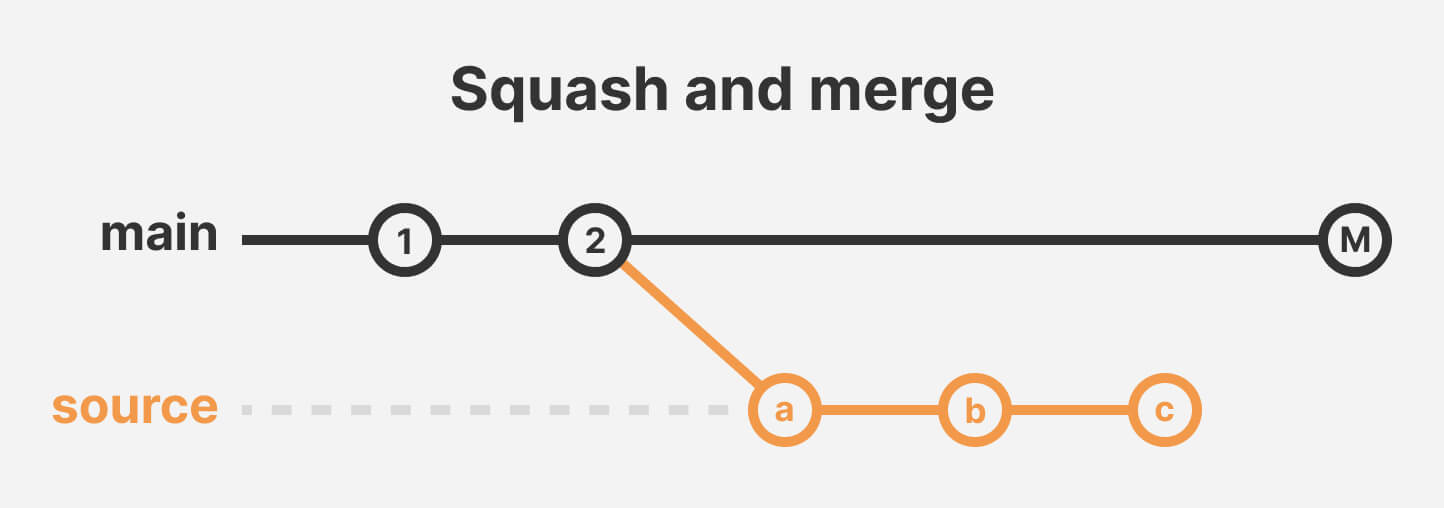
[Squash and merge] is an option that compresses (squashes) all commits of the source branch into one and adds it to the target branch at once.
For example, even if the source branch has three commits, only one merge commit (M) is added to the target branch.
This neatly cleans up small, unimportant commits, but it makes it hard to check the exact history later, so use it with care.
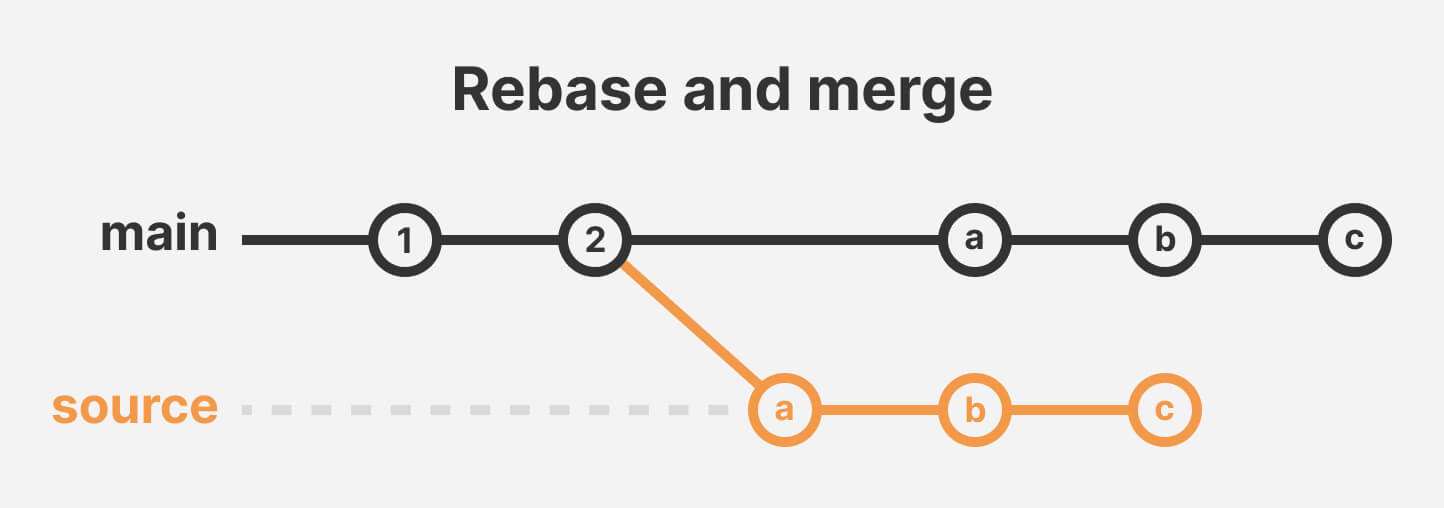
[Rebase and merge] is an option that adds all commits of the source branch to the target branch as they are.
For example, if the source branch has three commits, three commits (a, b, c) are added to the target branch one after another.
This is intuitive because you can stack up commits without creating a merge commit (M), but complex conflicts can occur when you merge several branches, so use it with care.
# Team development example
Continuing from the solo development example, Park now wants to develop an additional feature.
Here is how it can go.
Earlier, in the solo development example, we merged into the main branch on the remote repository, so you need to update the local main branch to the latest state!
12345678# Move to the main branch git switch main # Pull the latest changes from the main branch of the remote repository git pull origin main # Create and move to a branch for developing the additional feature git switch -c feature/count-increment
Then, as shown below, develop an additional function that increases the count data by 1, and use it in main.js.
The feature is done!
12345export let count = 0 export function increase() { count++ }
1234import { count, increase } from './count.js' increase() console.log(count) // 1
Now that development is done, commit the new version and push it.
12345678# Stage the changes git add . # Commit the changes git commit -m "Add a function that increases count." # Push the changes git push origin feature/count-increment
# Inviting a fellow developer
Tired of developing all alone, Park wants to talk fellow developer Kim into working on the current project together.
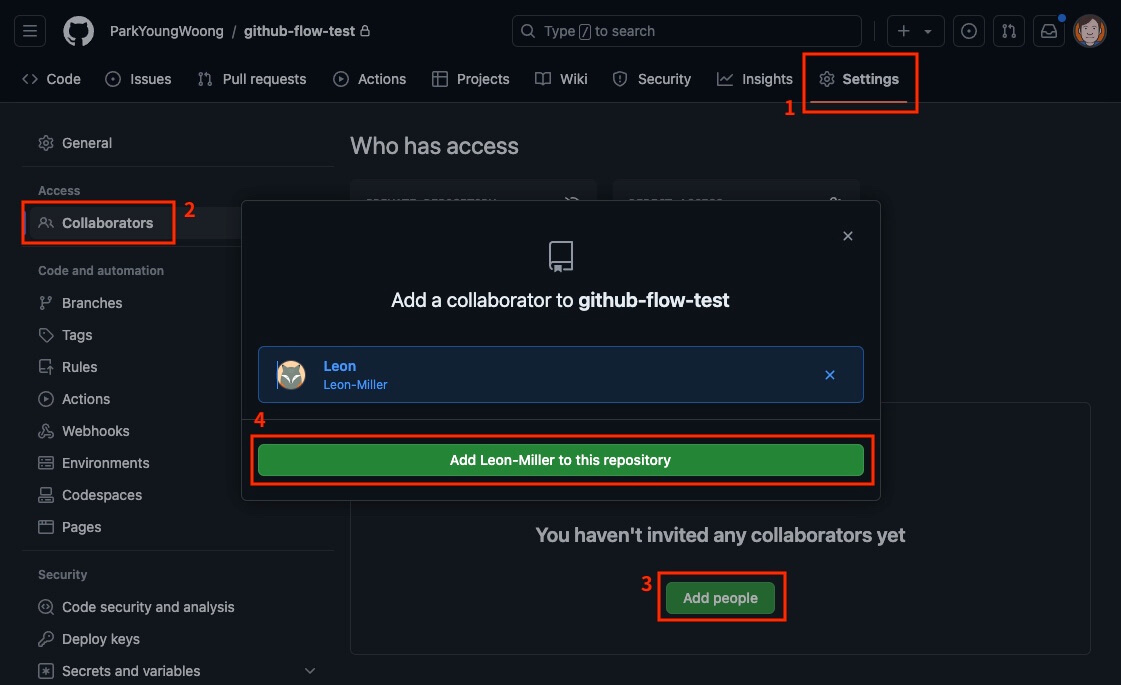
First, invite Kim as a collaborator to the project's GitHub repository.
Go to the [Settings] page and select the [Collaborators] menu.
Select the [Add people] button in the middle of the screen, then search for Kim's GitHub ID or name and add Kim to the current repository.
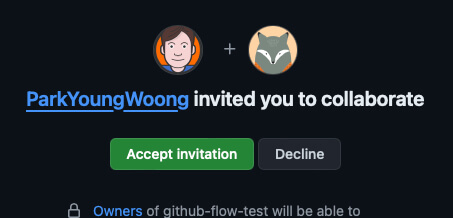
Then an invitation email is sent to Kim.
In the email, select the [View invitation] button to go on and accept the invitation.
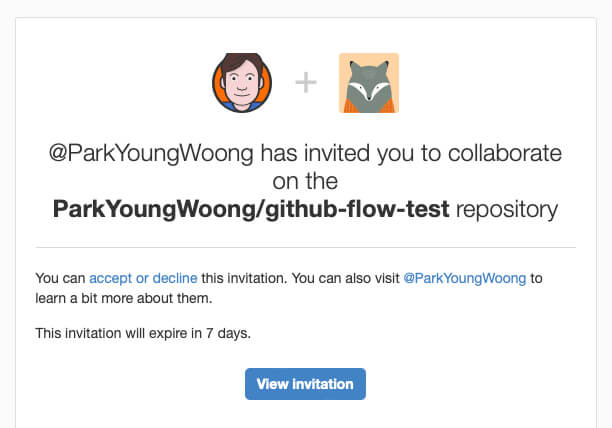
Once the invitation is finally accepted, Kim is added to the repository as a collaborator.
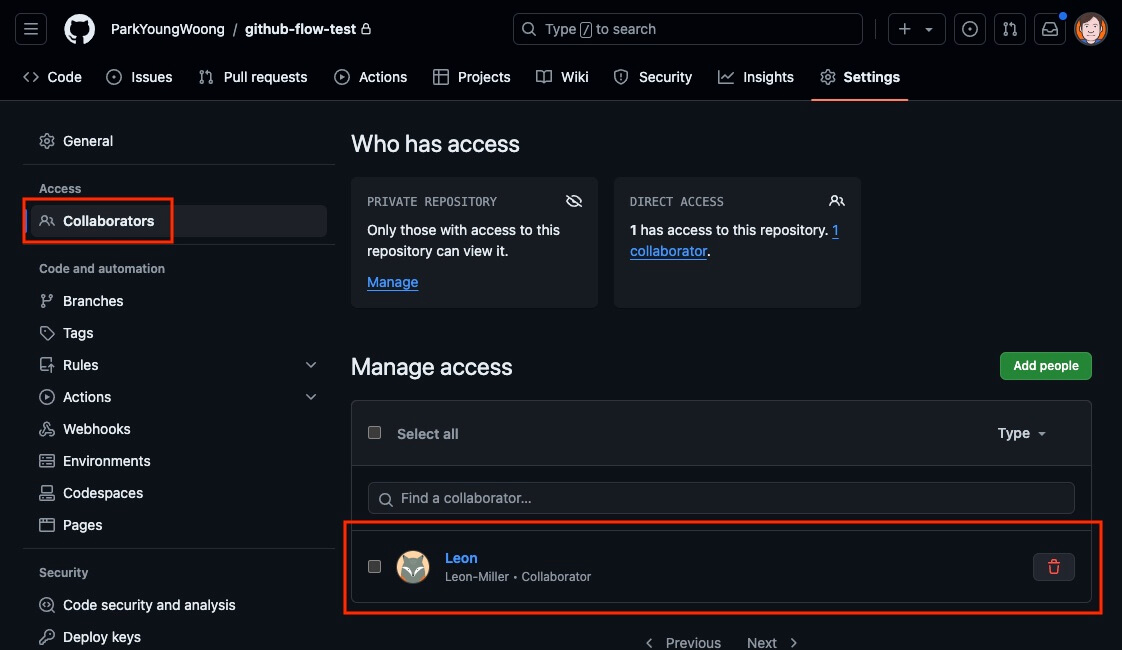
Park, the repository owner, can check in the list whether the invitation was accepted, as shown below.
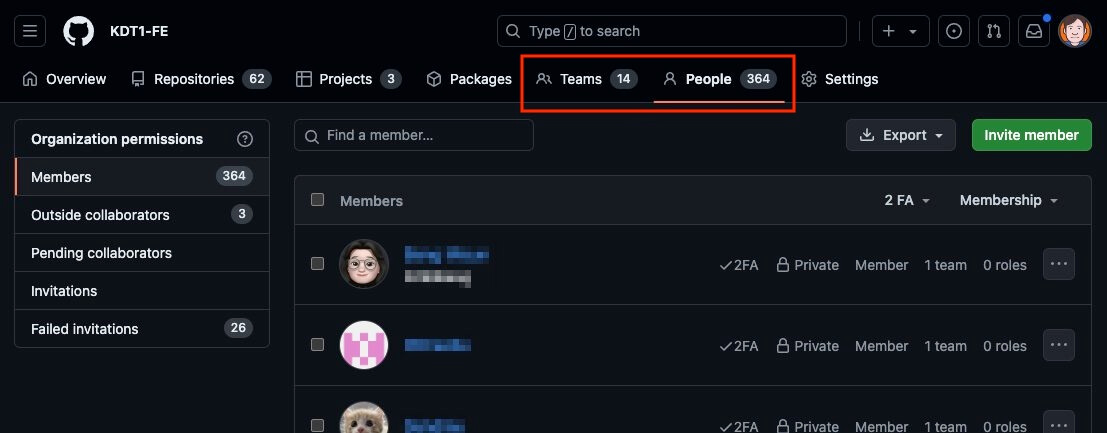
If the project repository is managed by an organization rather than an individual, you can invite members (People) and group them into teams (Teams) for more detailed permission management.
# Adding branch rules
When several people develop together, you can add branch rules to prevent mistaken merges into the main branch (main).
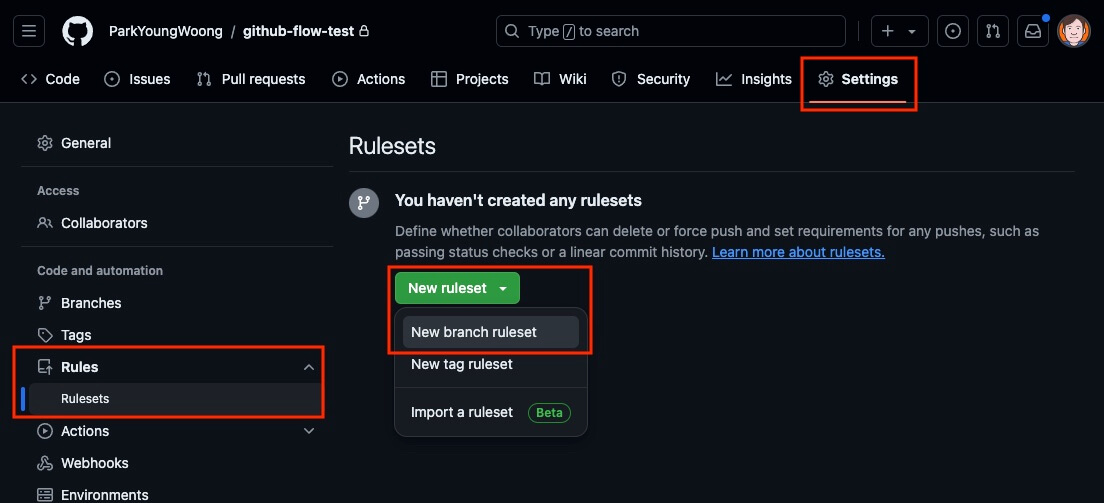
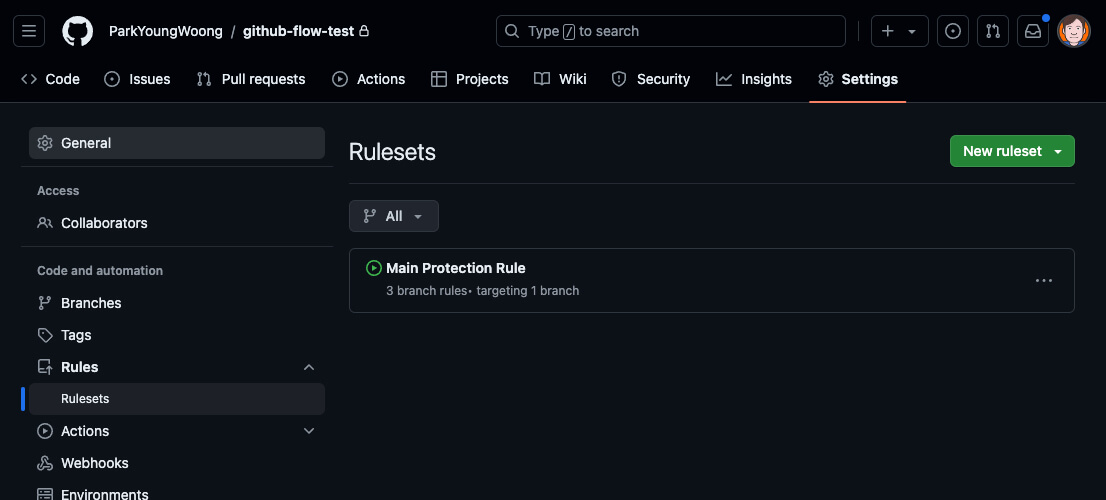
Go to the [Settings] page of the GitHub repository, open [Rules] in the right menu, and select the [Rulesets] menu.
Then select the [New branch ruleset] button to add a new branch rule.
First, write the rule name (Ruleset Name) and set the rule status (Enforcement status) to Active.
In the [Bypass list], specify the roles that can bypass the rule.
You can add a deployment service such as Vercel, the repository owner, and so on, so that they bypass the rule.
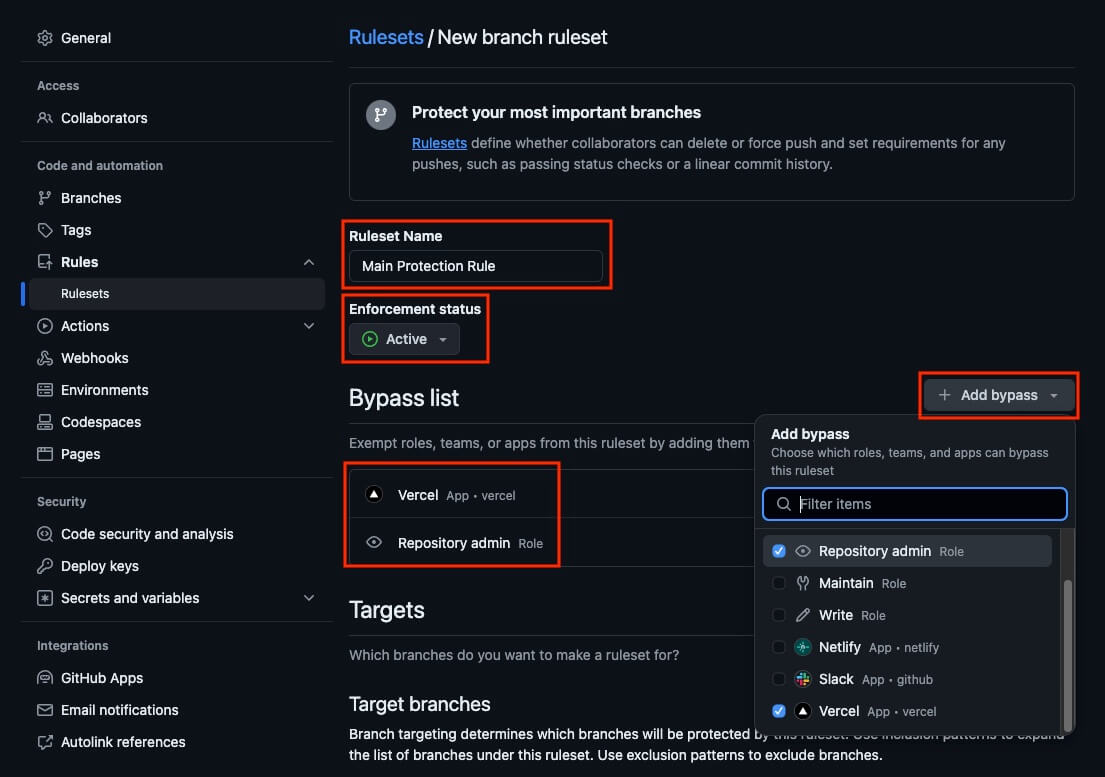
In [Targets], specify the target branches to protect.
Select [Include by pattern] in [Add target] on the right, and you can specify any pattern you want, such as the main branch or branches that start with release/.
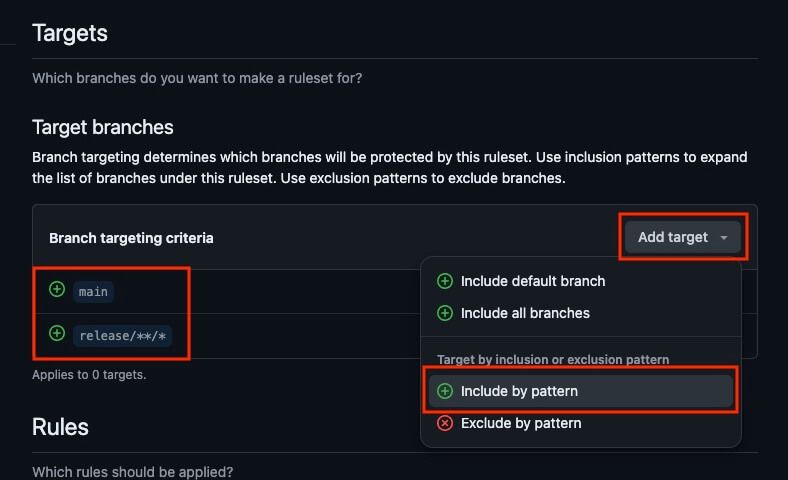
In [Rules], you can choose the rules to apply.
Keep the rules that are selected by default, and also select the [Require a pull request before merging] rule to set the detailed rules you want.
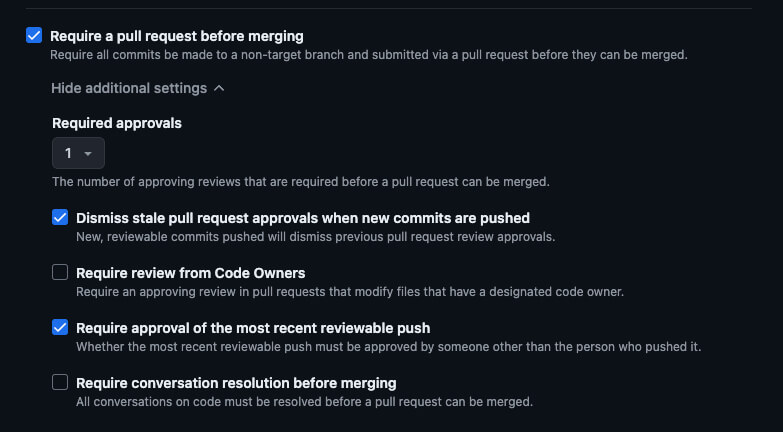
The detailed rules are as follows.
- Required approvals: Specifies the minimum number of reviewers needed to merge a PR. The PR can be merged only after at least that many reviewers approve it.
- Dismiss stale pull request approvals when new commits are pushed: When new commits are pushed to the source branch, previous PR approvals are dismissed. For example, if a reviewer approved the PR but the code changes afterward (before the merge), it needs to be approved again.
- Require review from Code Owners: If specific files have code owners, a PR that modifies those files must be approved by the code owners.
- Require approval of the most recent reviewable push: Code authors can't approve their own code, so another reviewer has to approve it.
- Require conversation resolution before merging: A PR can be merged only after all reviews are resolved.
When you have set all the rules you need, select the [Save changes] button at the bottom to apply them.
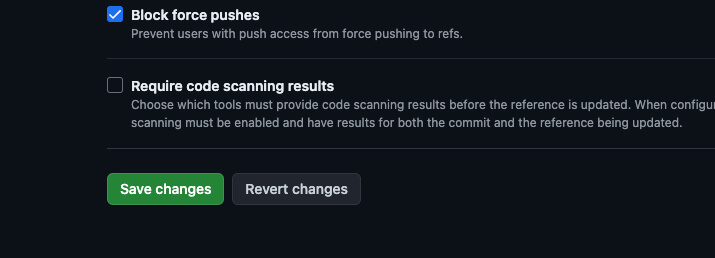
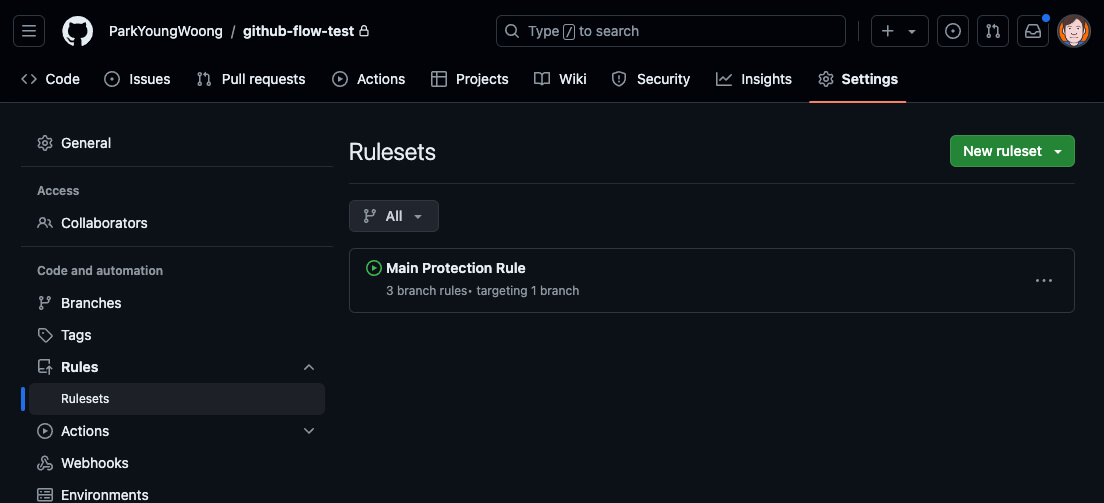
An active rule is shown with a green icon, as follows.
# Creating a PR
As in the solo development example, create a PR with feature/count-increment as the source branch and main as the target branch.
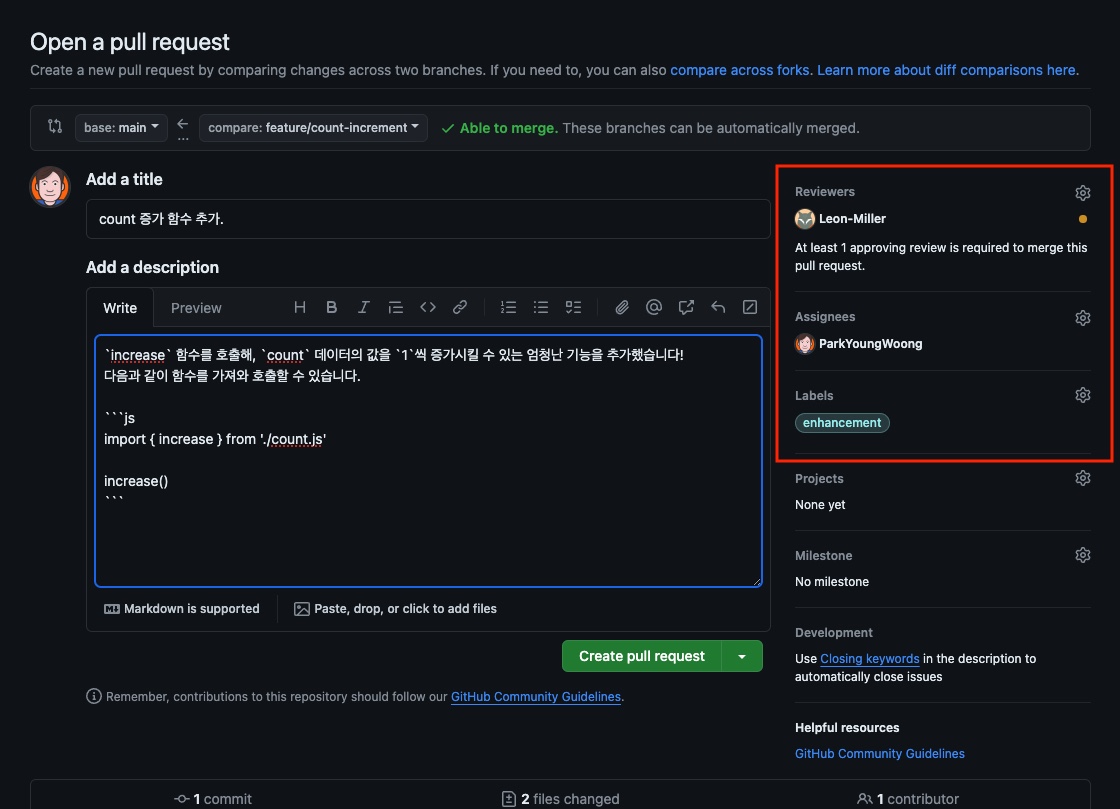
Since you'll ask a fellow developer for a review, write a detailed PR description!
Then set Kim, the fellow developer you invited, as a reviewer (Reviewers).
While you're at it, set Park as the PR assignee (Assignees) and add labels (Labels) to categorize the PR more specifically.
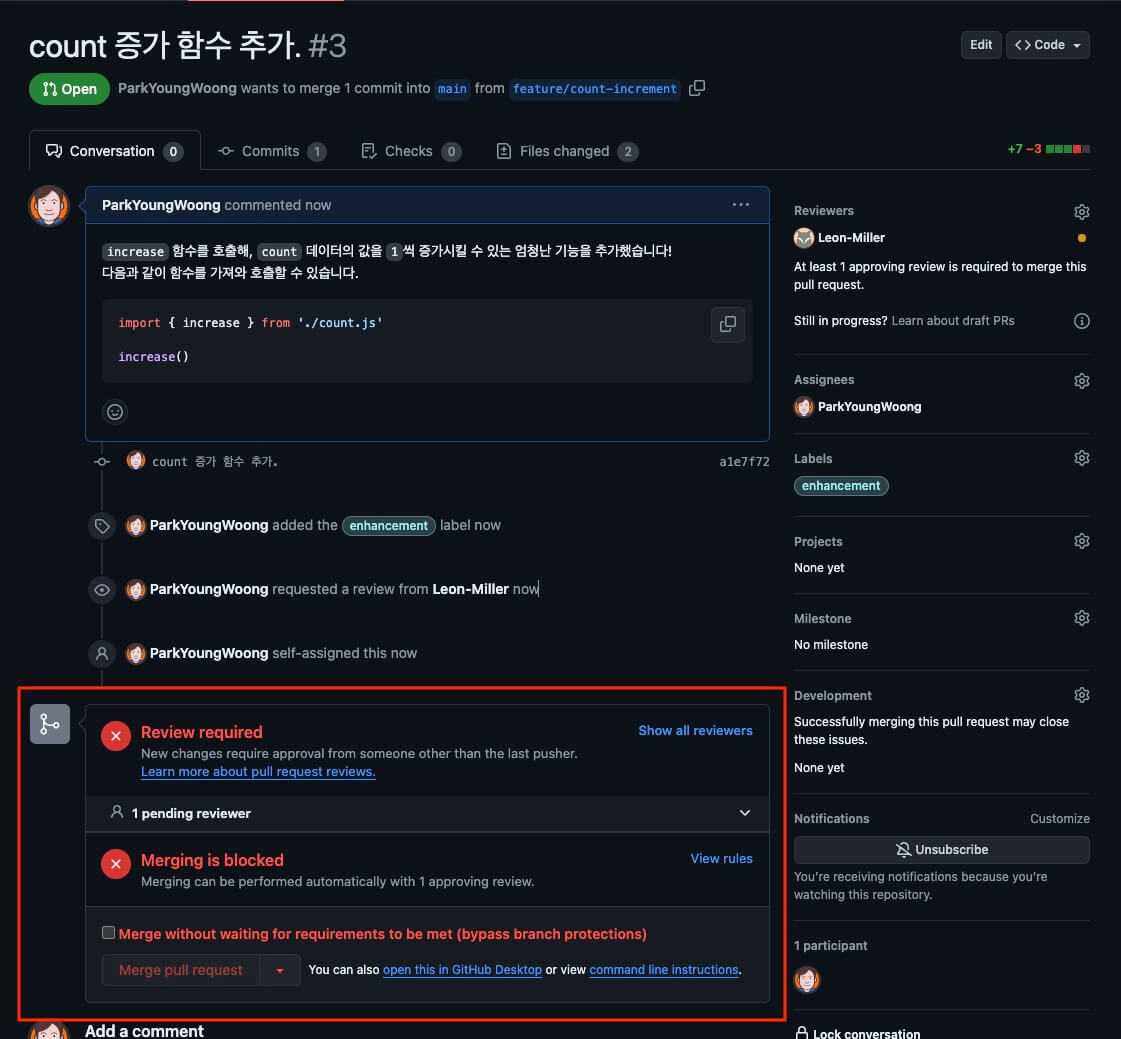
Because you added branch rules earlier, this time Park can't merge the new PR right away.
# Code review
Now Kim, who is registered as a reviewer, reviews the PR as follows.
Select [Files changed] to check the changed files and their contents, and start the review.
Select the [+] button on a line of code to add a comment (Comments).
The comment is registered in a 'Pending' state, and the comments are finally posted only when you select the [Finish your review] button in the upper right after you finish writing all of them.
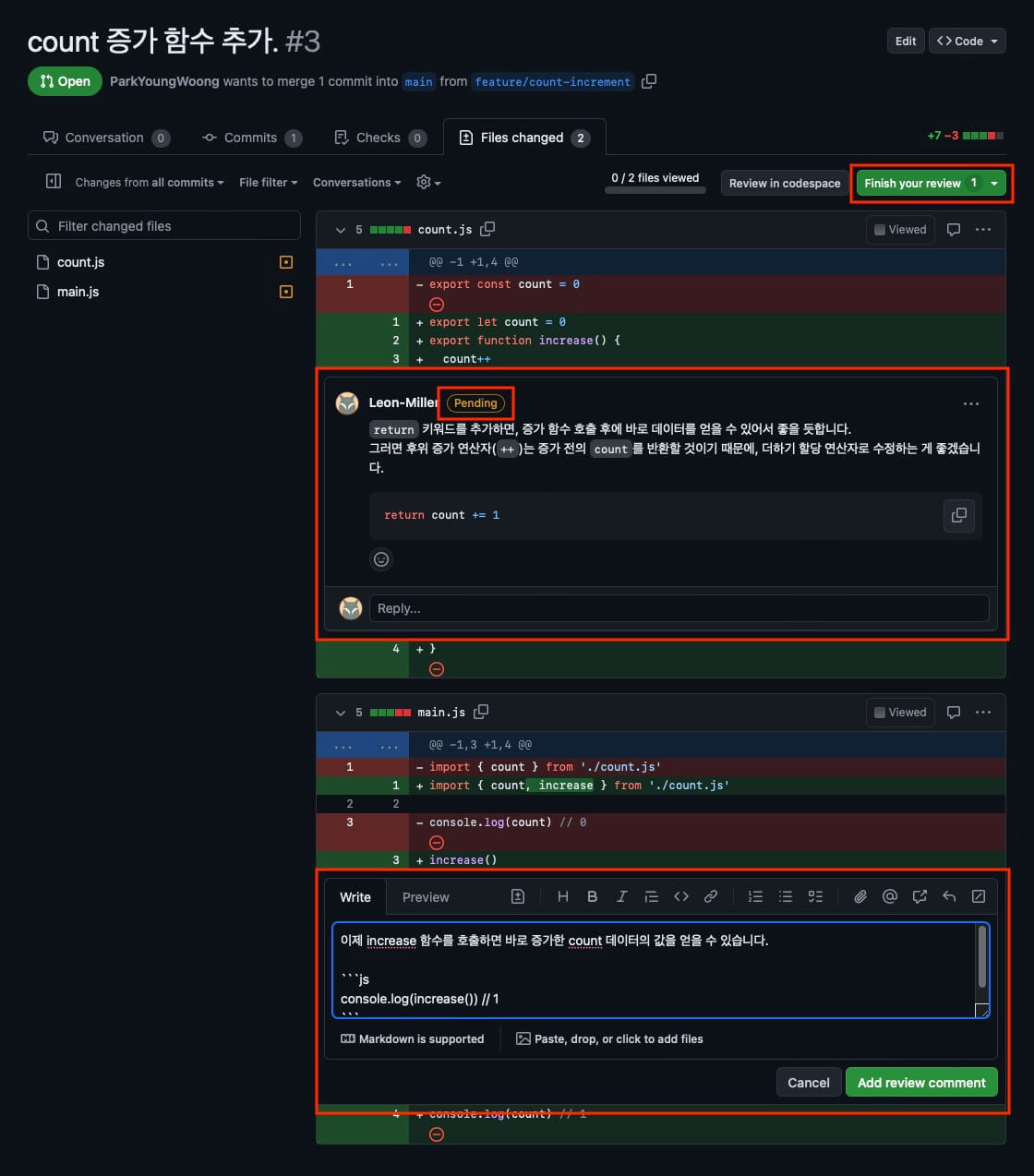
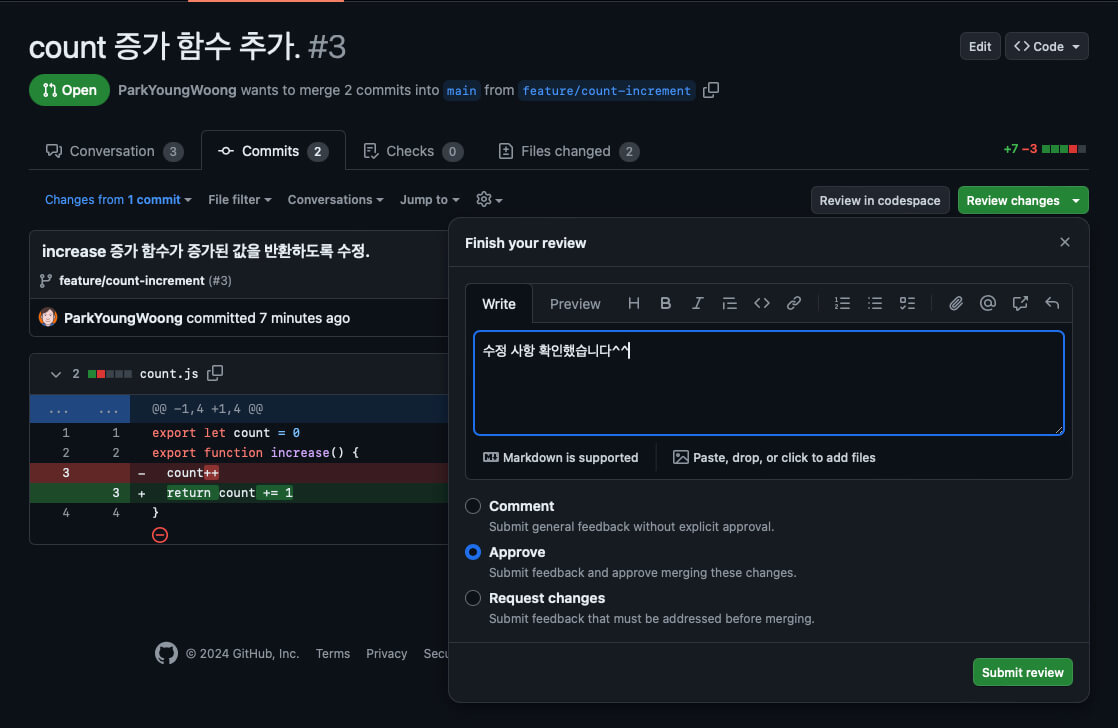
Choose a review type along with your final comment, and select the [Submit review] button to submit the review.
Because of the branch rule set earlier, an approving review is required to merge, so the reviewer must choose the [Approve] type to approve the PR.
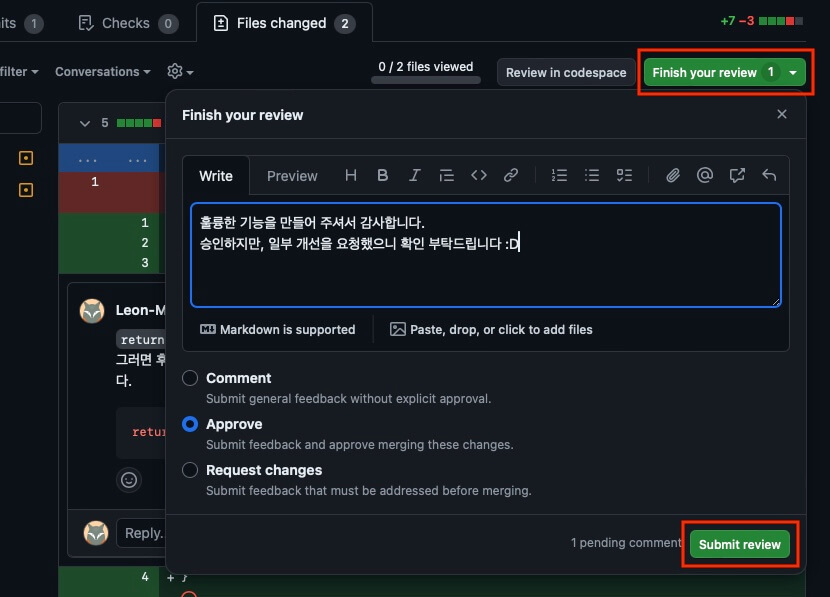
Each review type means the following.
- Comment: Submits a general review, not an explicit approval.
- Approve: Submits a review and approves merging the current PR.
- Request changes: Submits a review that must be resolved before merging. If you selected the Require conversation resolution before merging branch rule earlier, choosing this type means the assignee has to resolve all of the reviewer's comments before the PR can be merged.
# Applying the review
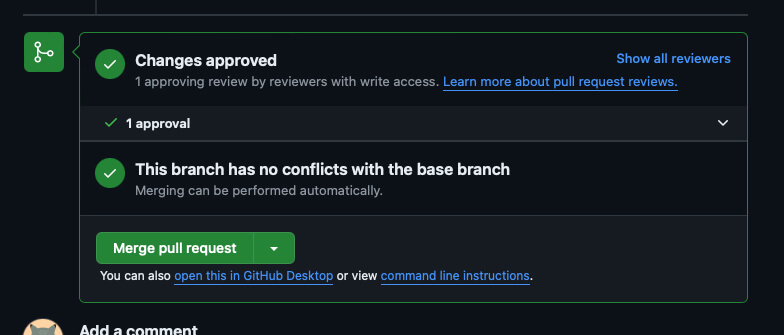
An approving review has been submitted, so the PR can now be merged.
However, Park, who created the PR, wants to update the code based on Kim's approving review.
Go back to the local project and modify the code.
12# Be careful not to work on a different branch! git switch feature/count-increment
1234export let count = 0 export function increase() { return count += 1 }
Commit and push again.
12345678# Stage the changes git add . # Commit the changes git commit -m "Make the increase function return the increased value." # Push the changes git push origin feature/count-increment
Go back to the PR page and request another review from Kim.
You've addressed the improvement requested in that review (conversation), so select the [Resolve conversation] button at the bottom to mark the review as resolved.
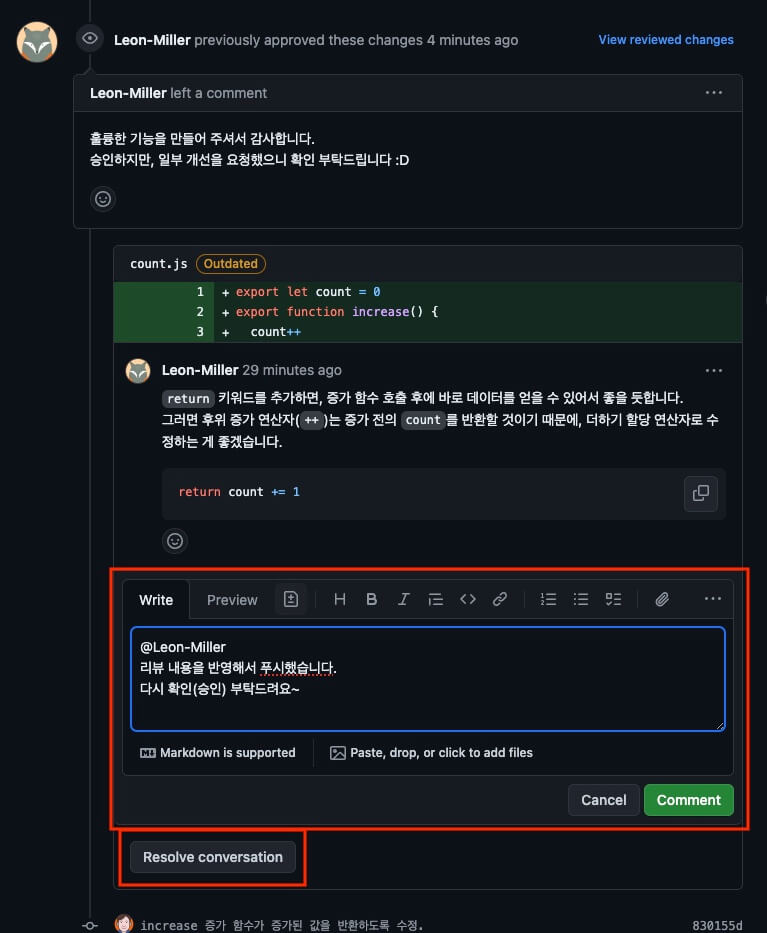
Kim sees the request and reviews the PR again.
[Files changed] shows all the changes, so to see the new modifications, go to the [Commits] menu and check the latest commit history.
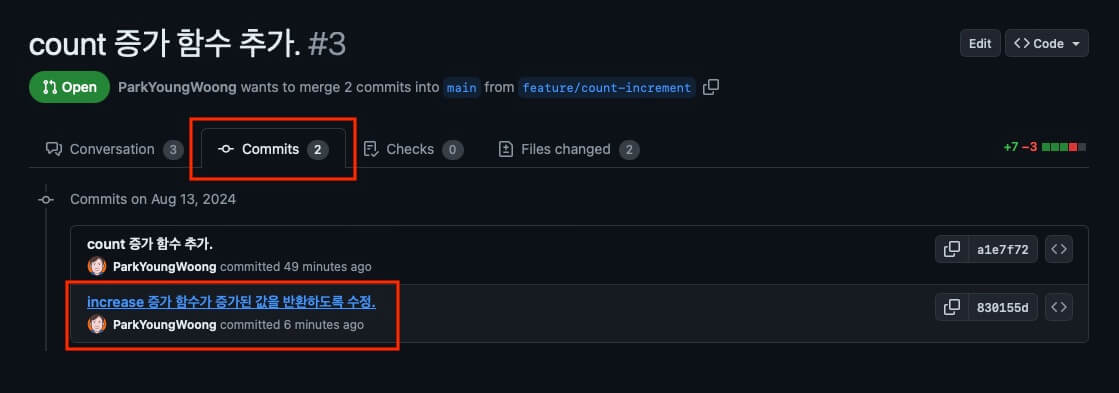
Once the changes look good, choose the [Approve] review type and submit the final review.
# Merging the PR
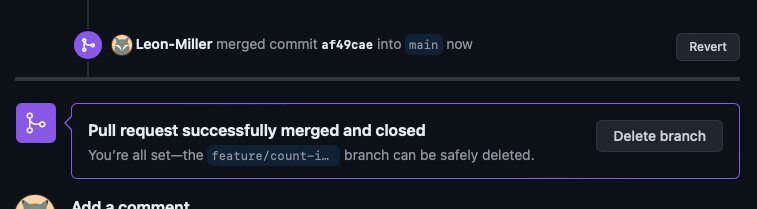
It has received final approval, so you can now merge it!
Either Park or Kim can merge the PR, as long as they have the right permissions.
Whoever does it, choose the merge option you want and finish merging the PR, as in the 'Solo development example' earlier.
# Test-based development example
When Park finishes development on a new branch and creates a PR, Park wants to run the test code safely and decide whether to merge the PR based on whether the tests pass or fail.
With GitHub Actions, you can run test code automatically and check the results.
# Adding a workflow
First, add a GitHub workflow that can run the test code automatically.
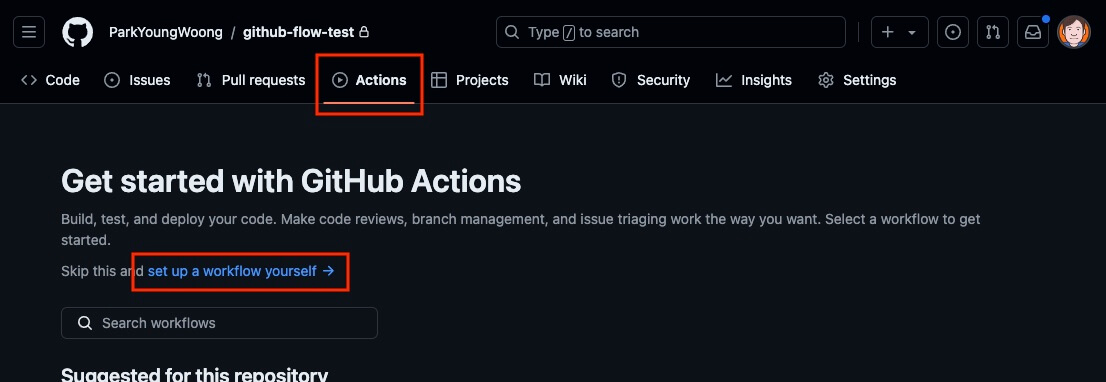
Go to the [Actions] page of the project repository.
Select the [set up a workflow yourself] button shown in the middle, as below.
Write the workflow file name and contents as follows.
When you're done, select the [Commit changes...] button in the upper right.
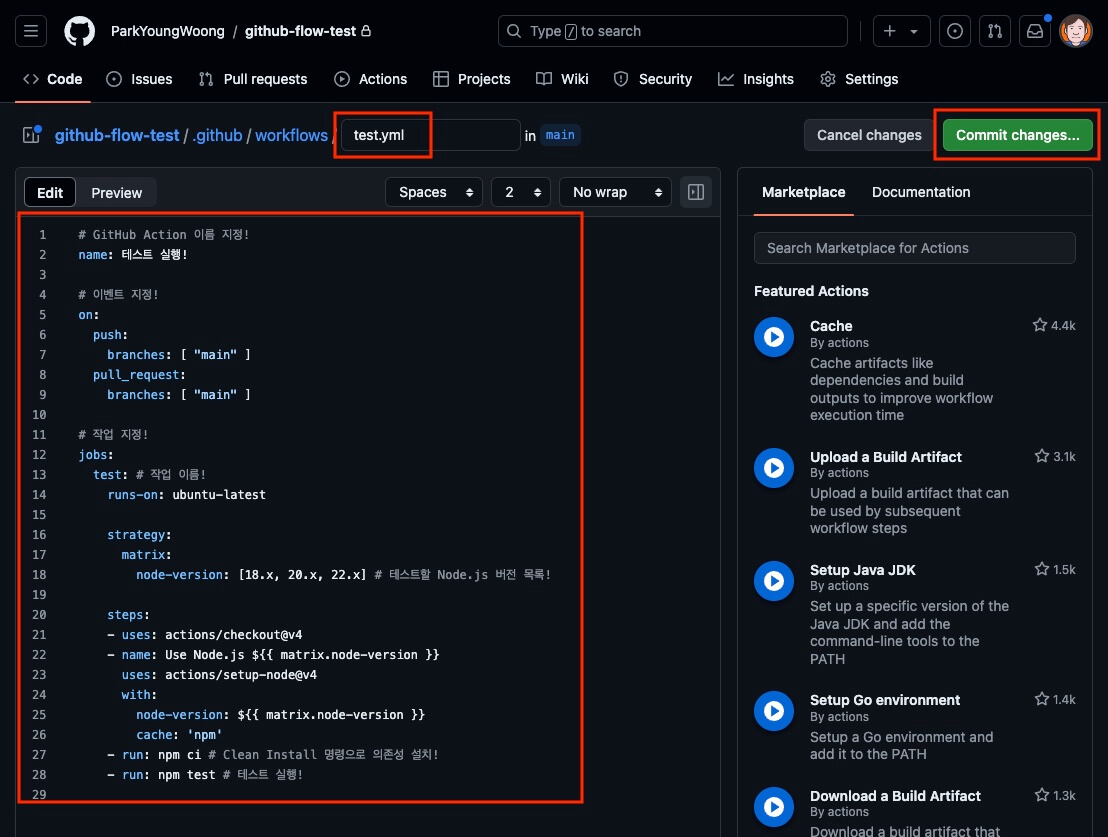
test in the jobs option is a job name chosen freely.
This name is used when you add a branch rule, so remember it!
12345678910111213141516171819202122232425262728# Set the GitHub Action name! name: Run tests! # Set the events! on: push: branches: [ "main" ] pull_request: branches: [ "main" ] # Set the jobs! jobs: test: # Job name! runs-on: ubuntu-latest strategy: matrix: node-version: [18.x, 20.x, 22.x] # List of Node.js versions to test! steps: - uses: actions/checkout@v4 - name: Use Node.js ${{ matrix.node-version }} uses: actions/setup-node@v4 with: node-version: ${{ matrix.node-version }} cache: 'npm' - run: npm ci # Install dependencies with the Clean Install command! - run: npm test # Run tests!
The workflow file you wrote is saved in the .github/workflows folder in the project root.
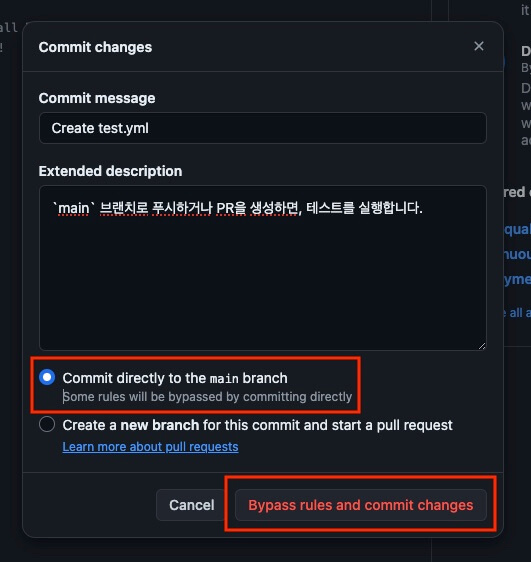
You need to choose whether to commit this change to the main branch or to a new branch.
Since this is test automation for the main branch, it makes sense to commit to the main branch.
Select the [Bypass rules and commit changes] button to commit.
# Updating the branch rules
A new commit has been added to the main branch of the remote repository, so you can use the new workflow right away.
So that a PR can be merged only when the tests pass, update the [Main Protection Rule] branch rule you added earlier in the 'Team development example'.
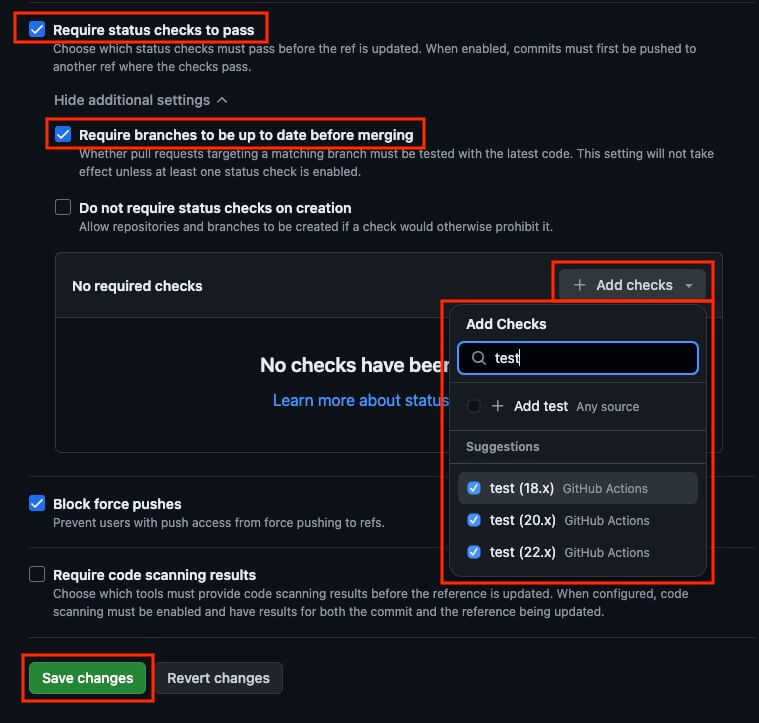
First, select the [Require status checks to pass] rule so that merging is allowed only when the checks pass.
As a detailed rule, select [Require branches to be up to date before merging] to make sure the target branch is up to date before the PR is merged.
Then, in the [Add Checks] menu below, search for the job name (test) of the workflow you added earlier.
The jobs of the workflow you added show up in the search results, as below, and you check the ones you want.
Finally, select the [Save changes] button at the bottom to save the updated rule.
# Adding tests (failing)
Now that you're ready to decide on PR merges with test code, add the test code.
12345678# Move to the main branch git switch main # Pull the latest changes from the main branch of the remote repository git pull origin main # Create and move to a development branch git switch -c feature/mocha
Install Mocha, a unit test library.
It's fine to use any other test library.
1npm i -D mocha
Installing the library created a node_modules folder, so you need to keep it out of version control.
Create a .gitignore file in the project root and add the node_modules/ folder to it.
1node_modules/
Add a script that runs the test code.
You can run the test script with either npm run test or npm test.
12345678910111213141516{ "name": "git-test", "version": "1.0.0", "description": "", "main": "main.js", "type": "module", "scripts": { "test": "mocha" }, "keywords": [], "author": "", "license": "ISC", "devDependencies": { "mocha": "^10.7.3" } }
To check that a PR really can't be merged when a test fails, write a failing test as follows.
123456789101112import assert from 'assert' import { count, increase } from '../count.js' it('Calling the increase function increases the count data by 1!', () => { assert.equal(count, 0) increase() assert.equal(count, 7) // Fails! }) it('Calling the increase function returns the count value!', () => { assert.equal(increase(), count) })
Now that the tests are written, commit and push.
12345678# Stage the changes git add . # Commit the changes git commit -m "Install the Mocha test library and add a failing test." # Push the changes git push origin feature/mocha
Create a PR from the source branch you pushed to the target branch (main).
Under the branch rules set in the 'Team development example', merging a PR requires not only passing tests but also an approving review, so set Kim as a reviewer.
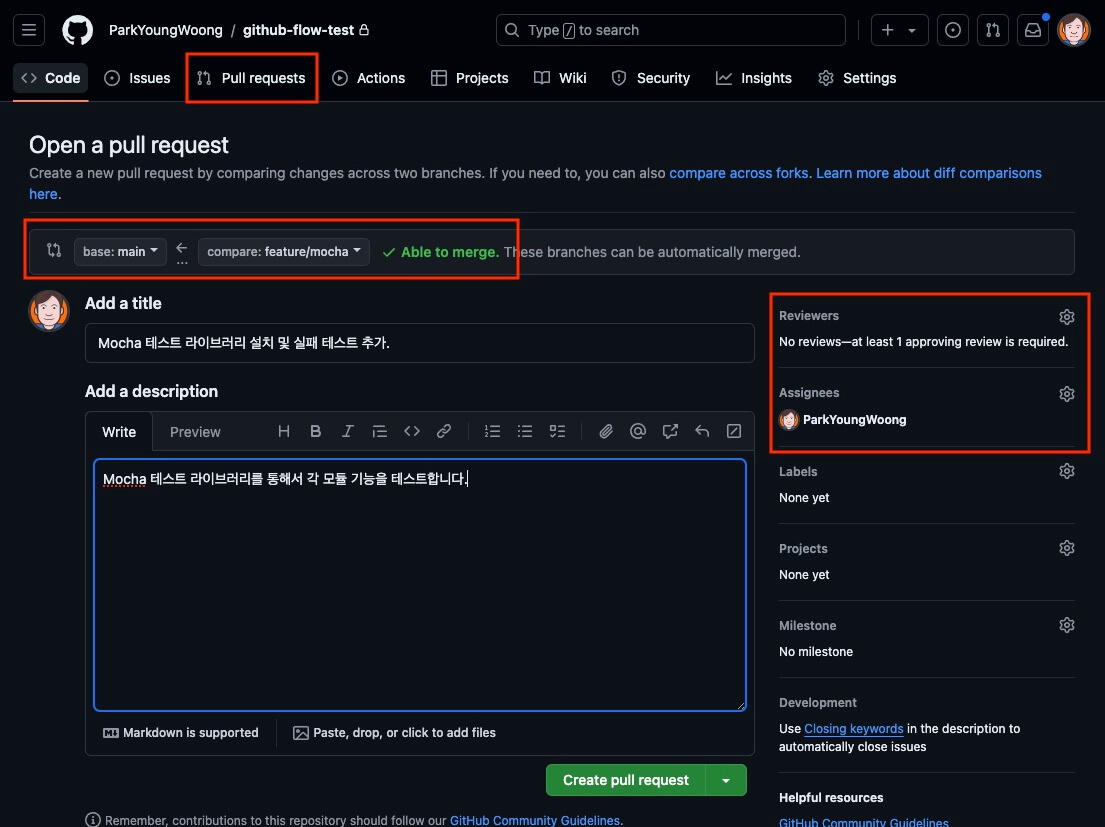
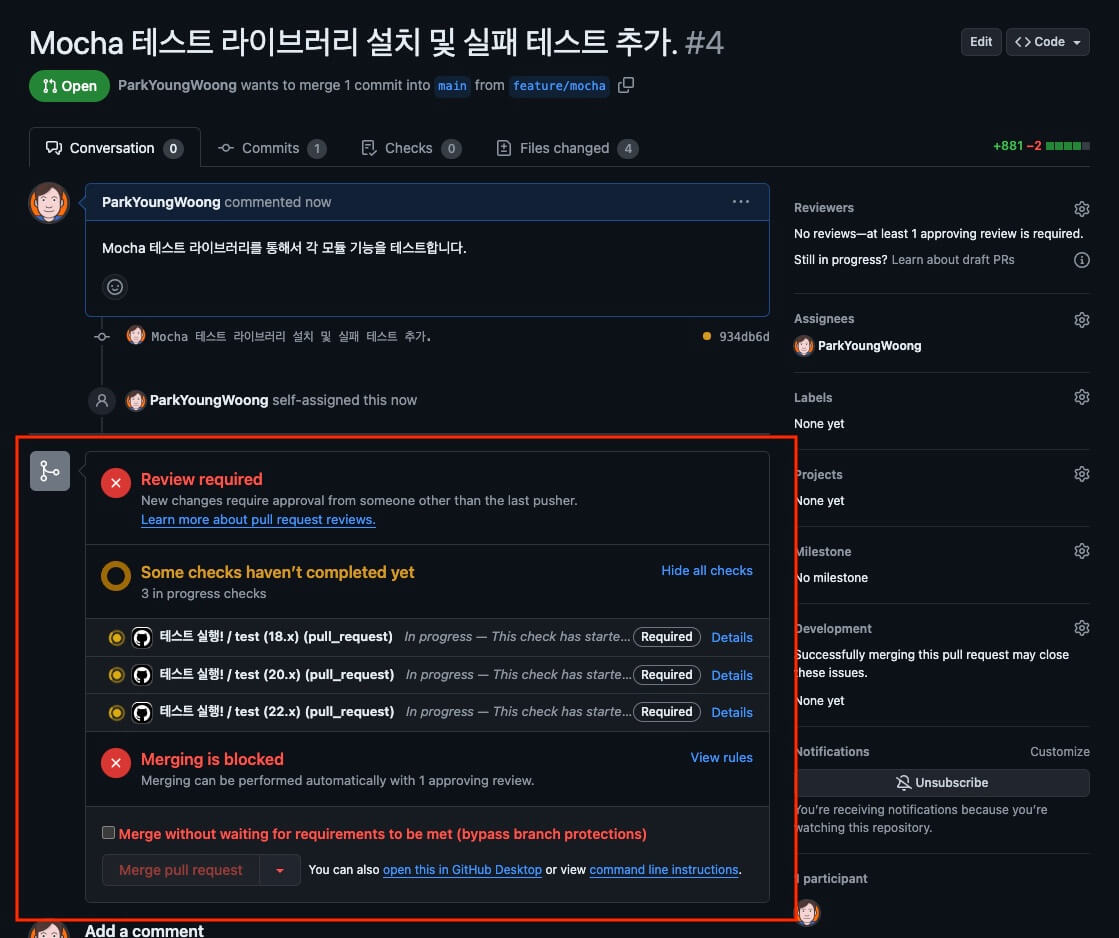
When you create the PR, GitHub Actions runs the test code automatically.
It takes a little while.
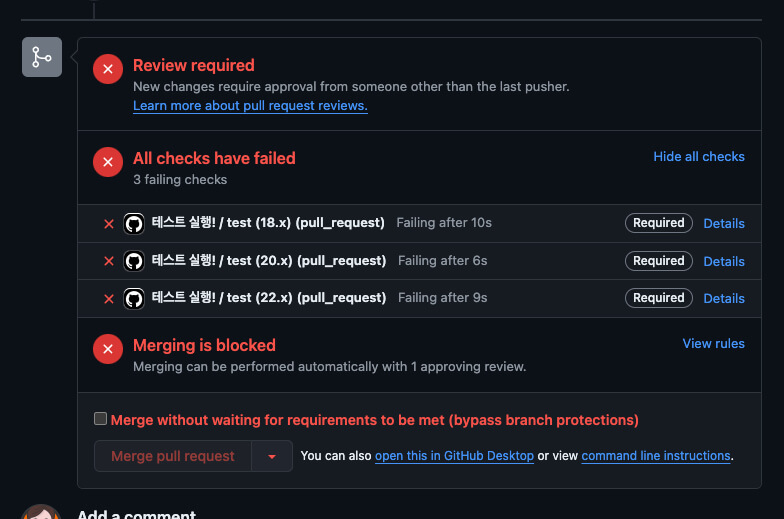
Since you wrote a failing test, you will of course see that the test failed, as shown below.
The failure was intentional, so now fix the test so it passes.
# Fixing the tests (passing)
Go back to the project and change the test so it passes, as follows.
123456789101112import assert from 'assert' import { count, increase } from '../count.js' it('Calling the increase function increases the count data by 1!', () => { assert.equal(count, 0) increase() assert.equal(count, 1) // Passes! }) it('Calling the increase function returns the count value!', () => { assert.equal(increase(), count) })
When you're done, commit and push again.
12345678# Stage the changes git add . # Commit the changes git commit -m "Fix the test so it passes." # Push the changes git push origin feature/mocha
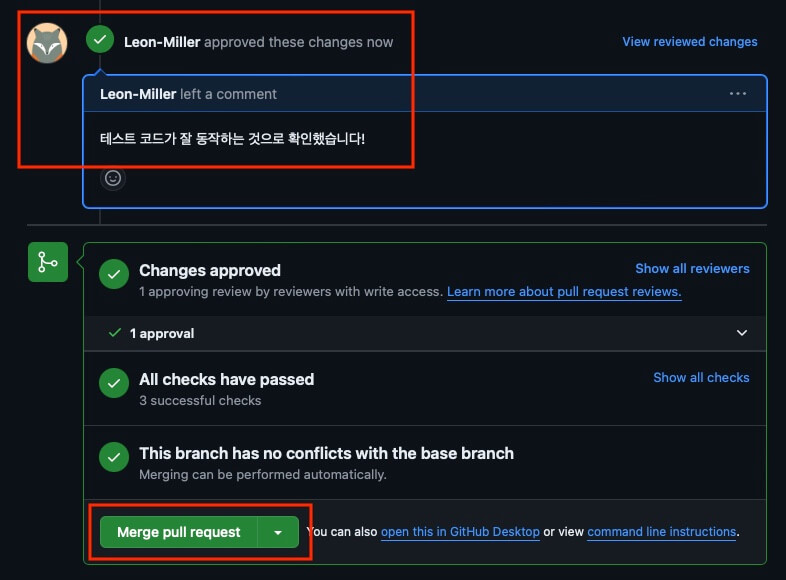
When a new commit is pushed to the branch of an open PR, the tests run again right away.
After a little while, the tests pass, and once the approving review is also done, the PR can be merged, as shown below.
From now on, a PR from any source branch that targets the main branch can be merged only when its tests pass.
# Issue-based development example
GitHub issues are used to track and manage the work on a project, such as development requests and bug fixes.
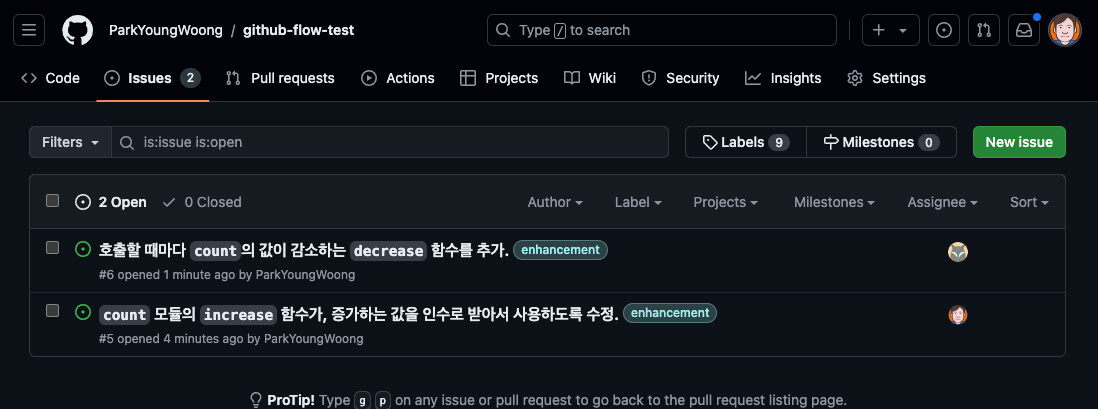
Park wants to create issues to clearly lay out what needs to be developed, and ask Kim to do the development with reference to the issues.
# Creating and referencing issues
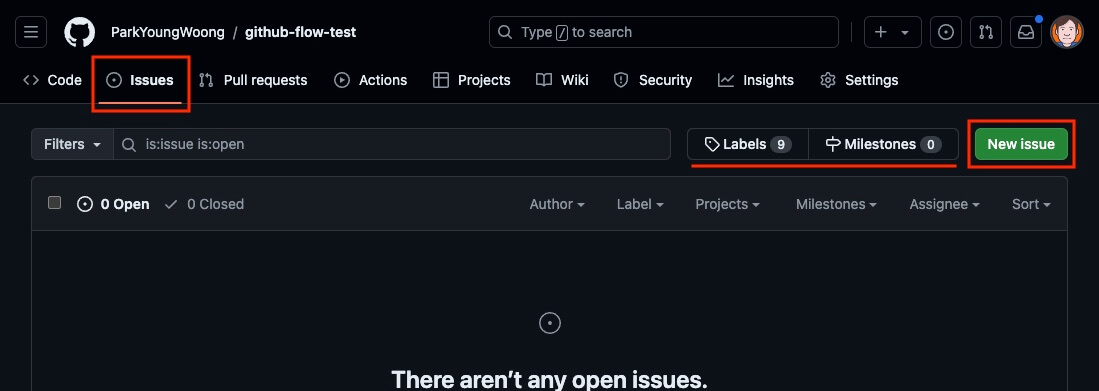
Go to the [Issues] page of the project repository and select the [New issue] button in the upper right.
Write an issue title and description, and you can set assignees (Assignees) or add labels (Labels).
The first issue is to change the increase function of the count module we developed earlier so that, instead of always increasing by 1, it takes the amount to increase as an argument.
Park is set as the assignee, and the enhancement label is added to show that this issue adds a new feature.
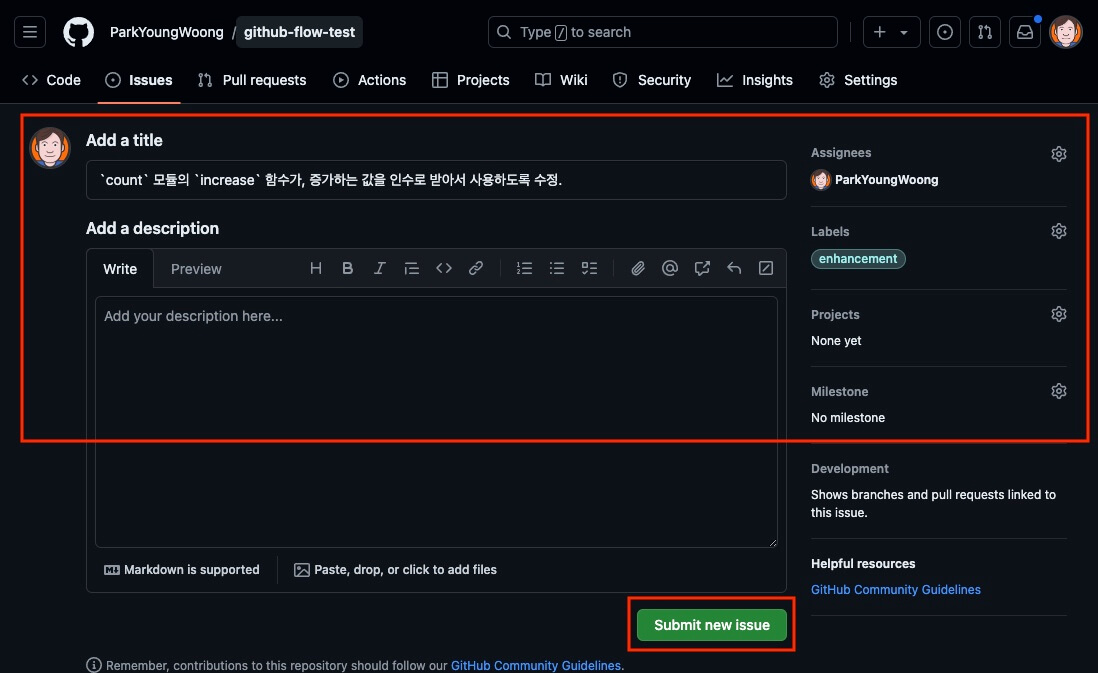
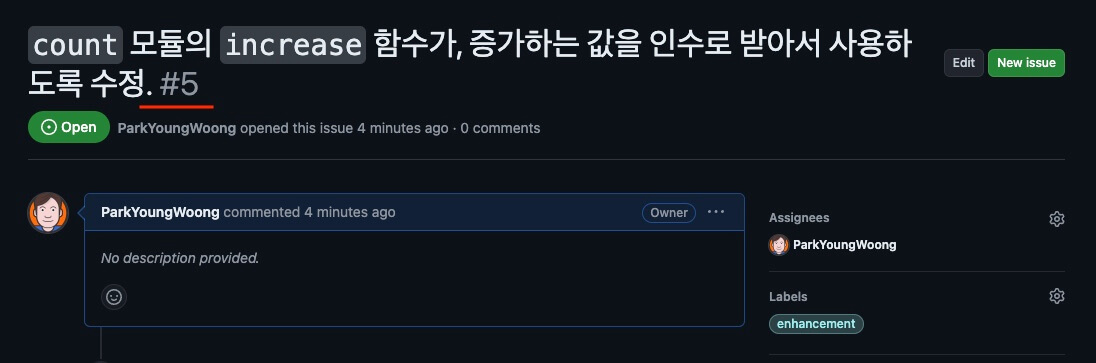
Select the [Submit new issue] button, and the issue is created as follows.
You can see that an issue number (#5) was automatically assigned to the new issue's title, and you can refer to this issue number as you develop.
Second, Park wants to add a decrease function to the count module to develop a feature that decreases the value.
Park can't develop everything alone, so fellow developer Kim is set as the assignee, and the enhancement label is added as well.
When you type the # symbol in an issue description, a list of issues and PRs you can reference is autocompleted, and you can choose the ones related to the current issue to show the relationship clearly.
The second issue is related to the issue for developing the 'feature that takes the value as an argument', so it references the first issue (#5).
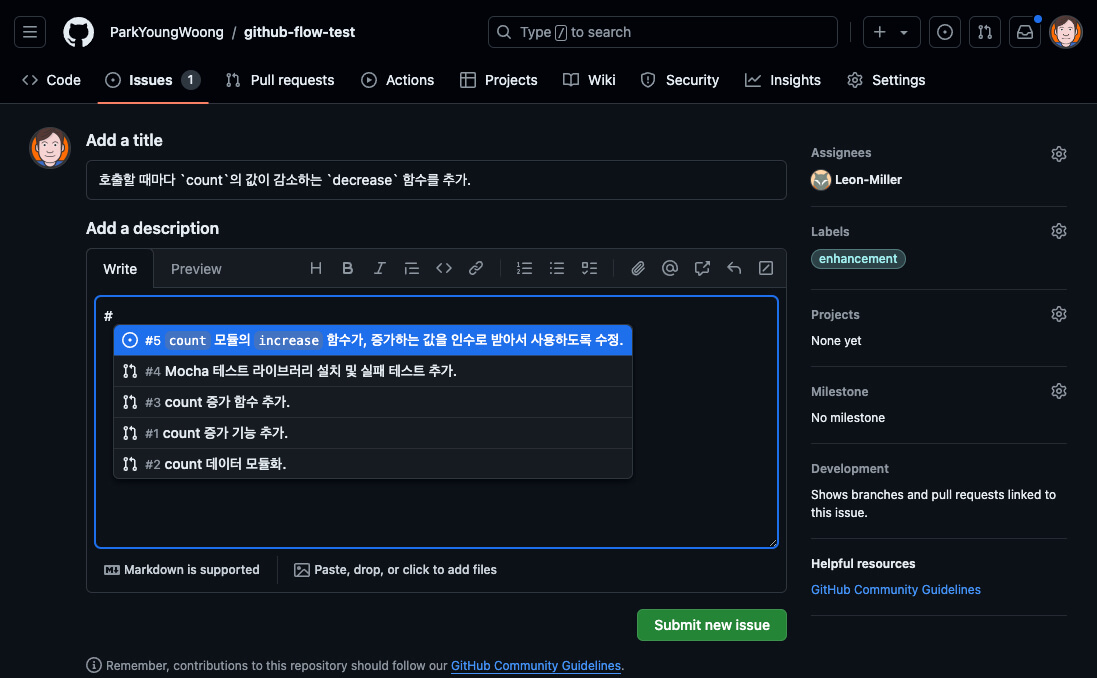
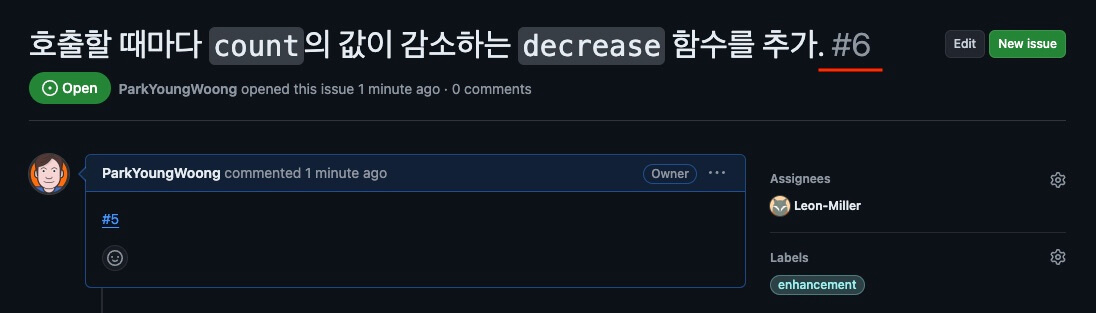
Again, you can see that an issue number (#6) was automatically assigned to the new issue's title.
The referenced number is also linked automatically, so you can go to that issue or PR.
# Labels and milestones
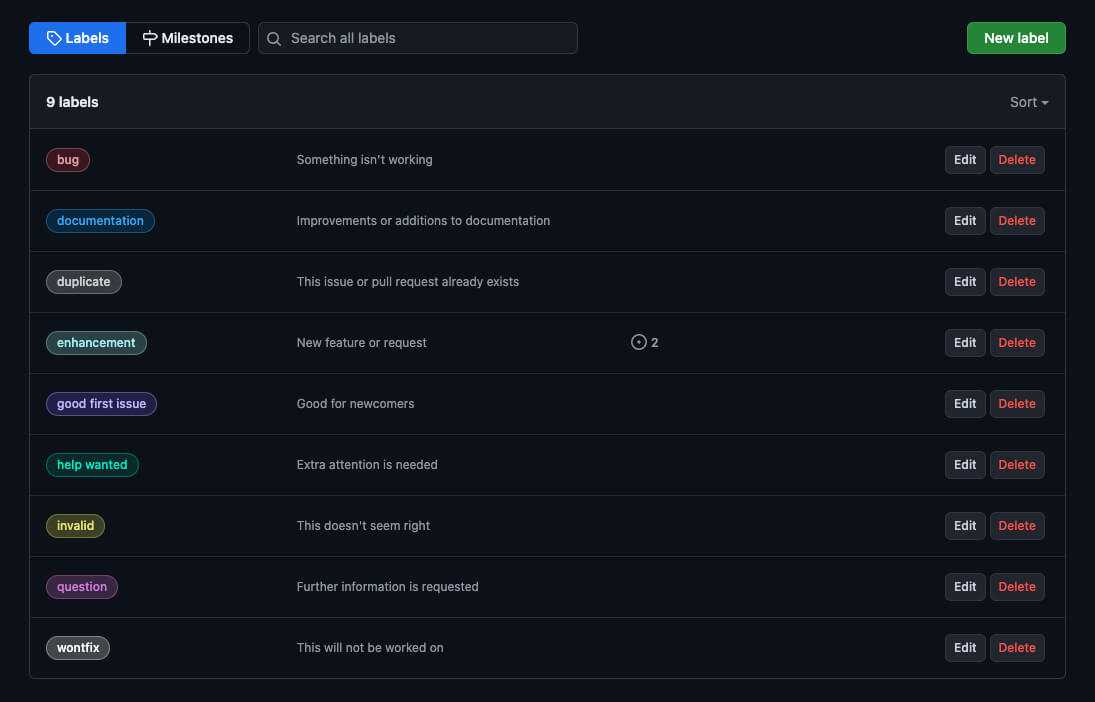
When you add a label, you can easily tell what kind of work an issue or PR is.
You can add or change as many labels as you want, and you can add several labels to one issue.
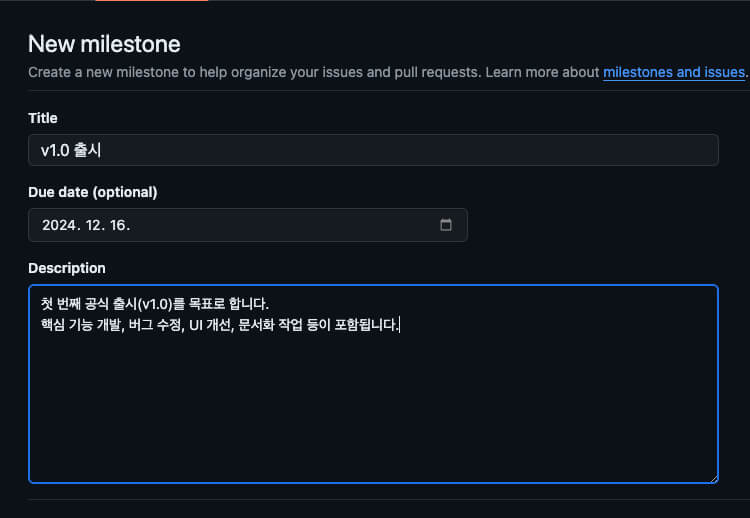
With a milestone, you can set a title, a description, and a due date (Due date).
This makes it clear in what time frame an issue or PR should be completed.
# Resolving issues and PRs
After checking the new issues, Park and Kim each start developing based on them.
Park creates a feature/increase-with-argument branch and modifies the increase function of the count module as follows.
Park adds close #5 to the commit message to show that the issue is resolved, so that the issue closes automatically when the change is merged into the default branch.
You can also use fix, resolve, and so on instead of close.
1234export let count = 0 export function increase(val = 1) { return count += val }
12345678# Stage the changes git add . # Commit the changes git commit -m "Make the increase function take the amount to increase as an argument. close #5" # Push the changes git push origin feature/increase-with-argument
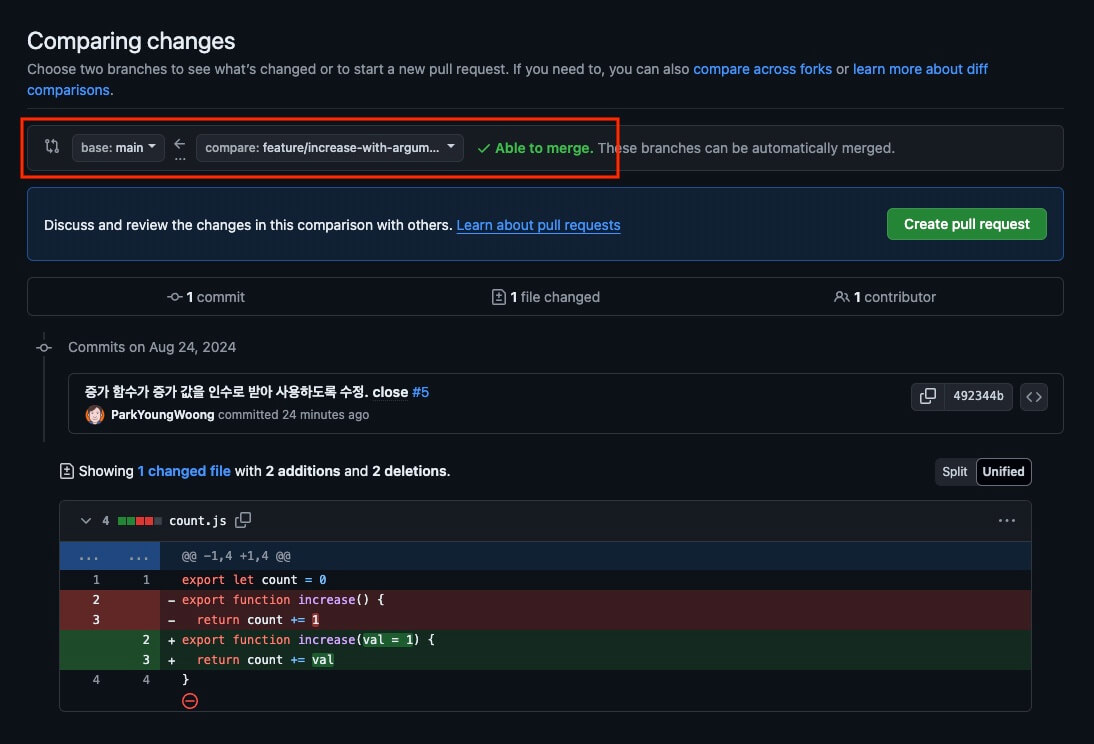
Park creates a PR and merges the pushed feature/increase-with-argument branch into the main branch.
It merges without any conflicts, and when the merge is complete, the issue closes automatically thanks to the commit message (... close #5).
Kim creates a feature/decrease branch and adds a decrease function to the count module.
Kim checked the assigned issue (#6) but forgot to add close #6 to the commit message.
12345678export let count = 0 export function increase() { return count += 1 } export function decrease() { return count -= 1 }
12345678# Stage the changes git add . # Commit the changes git commit -m "Add a decrease function to the count module." # Push the changes git push origin feature/decrease
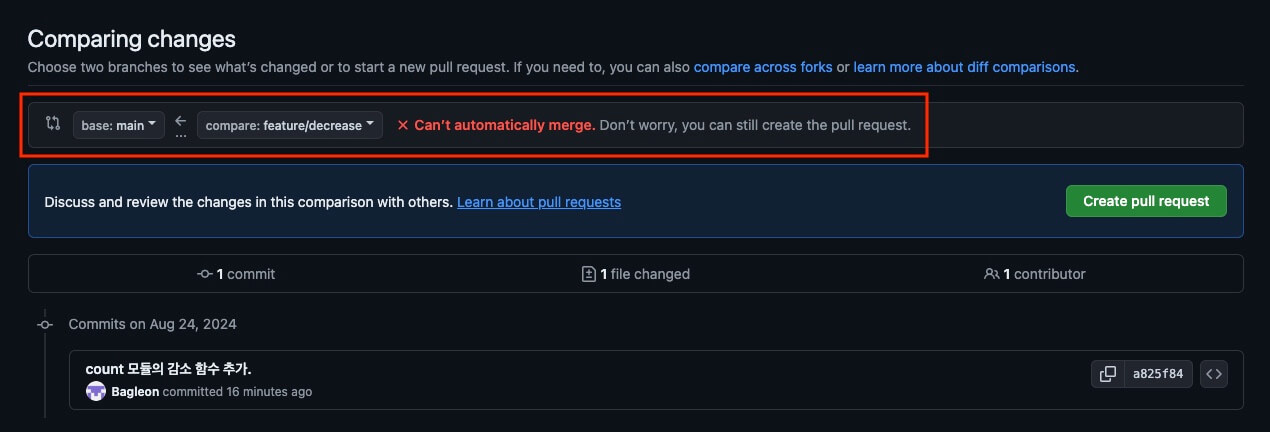
Kim also creates a PR and tries to merge the pushed feature/decrease branch into the main branch.
However, as shown below, an error message saying the branches can't be merged automatically (Can't automatically merge.) appears just before the PR is created.
In this case, you have to resolve the problem (conflict) before you can merge.
# Resolving conflicts
A conflict that occurs while merging two branches must be resolved locally or on GitHub.
# Resolving conflicts locally
First, locally, you can try the merge manually and then check and resolve the conflict.
Try merging the main branch into the feature/decrease branch, as follows.
1234567891011# Move to the main branch git switch main # Pull the latest changes from the main branch of the remote repository git pull origin main # Move to the branch to merge into git switch feature/decrease # Try the merge git merge main
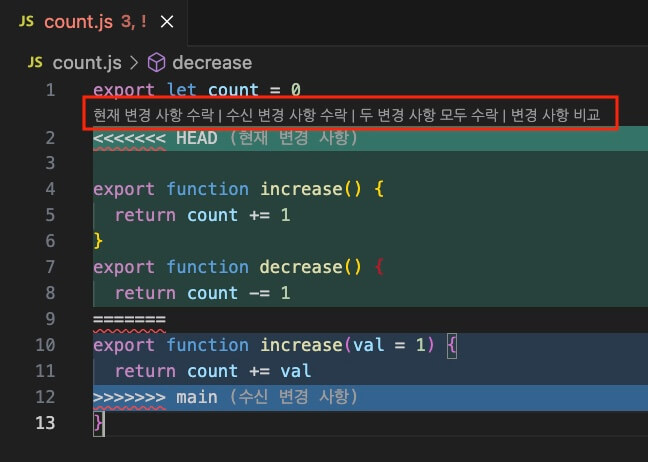
Trying the merge reveals the conflict, as shown below.
[Current Change] is the content of the target branch (feature/decrease), and [Incoming Change] is the content of the source branch (main).
You can simply choose the current or incoming change, select the [Accept Both Changes] button to apply everything, or edit parts of it to complete the merge.
Keeping in mind that the second issue (#6) referenced the first issue (#5), make the final changes as follows.
12345678export let count = 0 export function increase(val = 1) { return count += val } export function decrease(val = 1) { return count -= val }
Now that the conflict is resolved, commit and push.
If you create the PR again on GitHub, you can now merge it without conflicts.
12345678910# Stage the changes git add . # Commit the changes git commit ## "Merge branch 'main' into feature/decrease" :wq # Push the changes git push origin feature/decrease
# Resolving conflicts on GitHub
You can also check and resolve conflicts on GitHub.
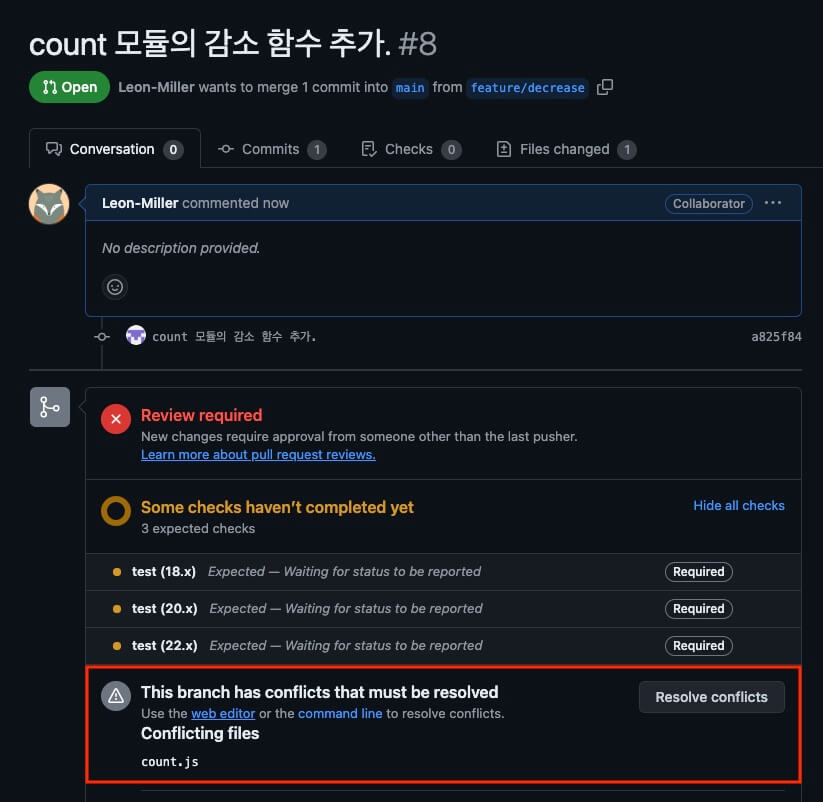
As you saw earlier, a conflict will occur, but create the PR anyway.
Then, as shown below, the 'This branch has conflicts that must be resolved' message appears, along with a [Resolve conflicts] button on the right.
Select this button to start resolving the conflict.
Look at the conflicted file, and you can choose which branch's content to use.
Above the ======= marker is the content of the feature/decrease branch, and below it is the content of the main branch.
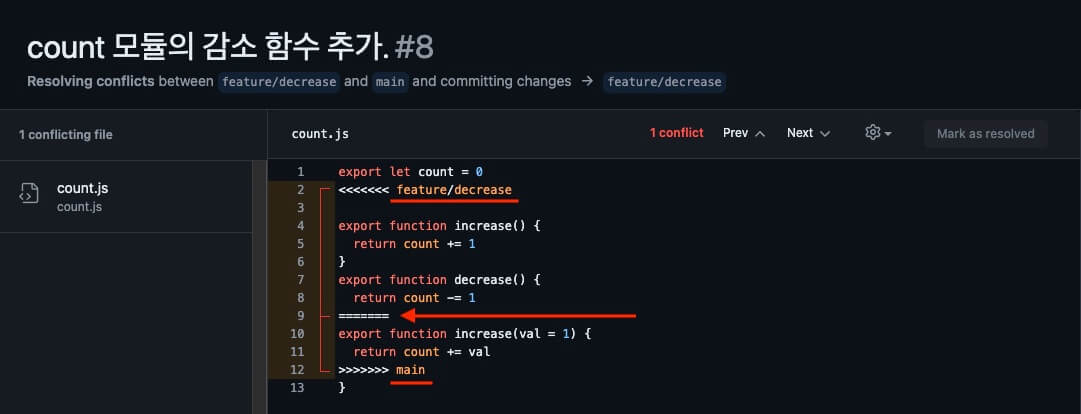
Keeping in mind that the second issue (#6) referenced the first issue (#5), make the final changes as follows.
Select the [Mark as resolved] button in the upper right to save your changes, and once you have checked and resolved all the conflicts, select the green [Commit merge] button in the upper right to commit them.
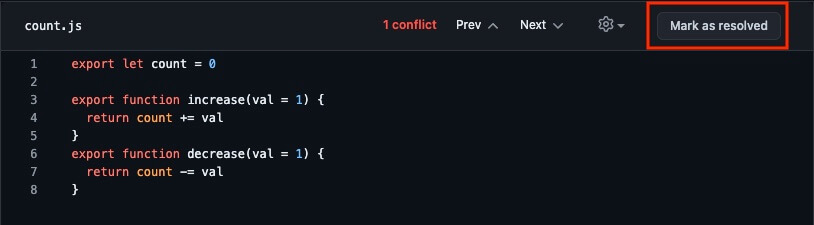
The conflict is resolved, so you can now merge the PR.
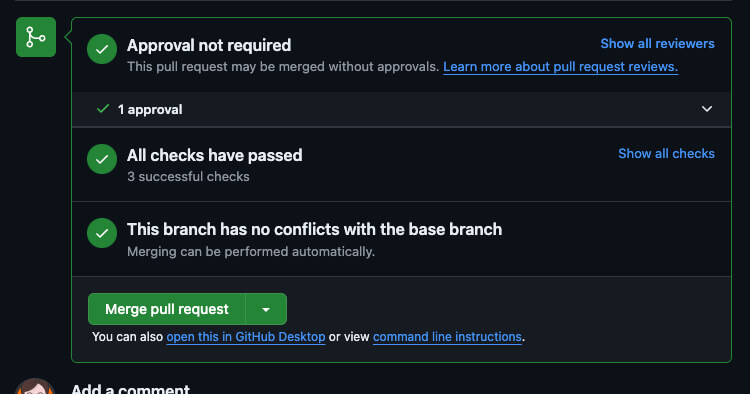
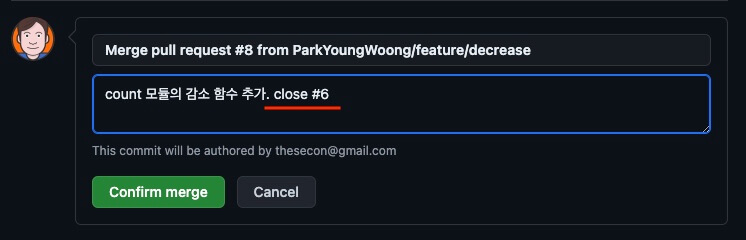
Kim didn't add close #6 to the commit message, so the issue doesn't close automatically even after the merge.
So you can either add close #6 to the final merge confirmation message, as shown below, to close the issue,
or select the [Close issue] button on the issue page to close the issue manually.
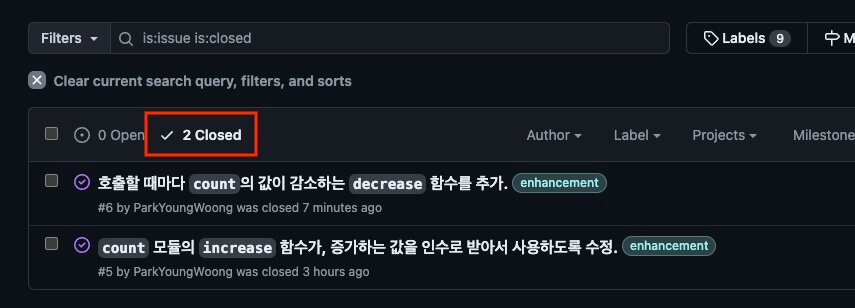
A closed issue is shown with the [Closed] status, as follows.
Thanks for reading to the end.
Likes and kind comments help keep this blog going!